
Contents
This book covers the complete Internet & Networking syllabus — from what the Internet is, through browsers, search engines and email, to computer networks, network types and network policy — and finishes with a full exam question bank and a one-page revision mind map. Read it in order; every term that appears in the exam is taught in the body.
What is the Internet?
The Internet is a global network of billions of computers and other electronic devices. With the Internet it is possible to access almost any information, communicate with anyone else in the world, and do a great deal more. You do all of this by connecting a computer to the Internet, which is also described as going online. When someone says a computer is online, it is simply another way of saying that the computer is connected to the Internet and is ready to send or receive data from other devices.
The Internet is the largest computer network in the world, joining millions of computers together. To understand it properly, you first need to understand the word "network." A network is a group of two or more computer systems linked together so that they can share information. The Internet is built by joining countless smaller networks into one enormous whole, which is why it is correctly described as an interconnected system of networks — a network of networks. When data travels across it, the data is not sent all at once; instead it is broken into small pieces called packets that travel separately and are rejoined at the destination.
A little history
The foundation of the Internet began in 1969, when the United States Department of Defense created ARPAnet, a project that allowed military personnel to communicate with one another in an emergency. From those military beginnings the Internet grew explosively: by 2012 the number of Internet users worldwide had reached about 2.4 billion — roughly one third of the world's population. The sheer scale of the information stored online is hard to imagine: to store all of it you would need over one billion DVDs or about 200 million Blu-ray discs.
An ever-changing tool
It is no secret that the Internet is becoming a more and more integral part of our everyday lives. For someone new to the online experience it can feel a little overwhelming. In the early days, most people used the Internet only to search for information. Today's Internet, however, is a constantly evolving tool: it not only contains an amazing variety of information, but also provides new ways of accessing, interacting and connecting with people and content. As a result, new terms keep appearing as new technologies are introduced — which is exactly why a chapter like this one is worth studying carefully.
Server, Client & Peer-to-Peer
You may have heard someone say something like "the server is down" or "we're having problems with the e-mail server." To understand such sentences, you need to know the two main roles that computers play on a network: the server and the client.
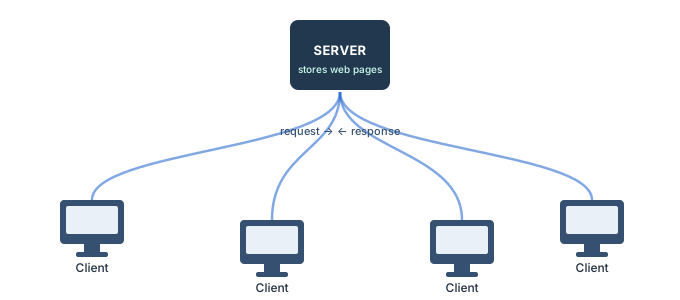
A server is a computer that "serves" many different computers in a network by running specialized software and storing information. For example, web pages are stored on servers. In networking, the main computer on a network is called the Server Computer, and it is the special computer that stores network programs and data. The server also gives the other computers permission to share resources on the network.
When you access a web page, your own computer is acting as a client. A client runs familiar software such as web browsers or email programs, and it communicates with the server to get the information it requires. The other connected computers in a network are also called node computers.
The two roles work together in a simple request-and-reply cycle. In order for your browser to display a web page, it requests the data from the server where the page is stored. The server processes the request and then sends the data back to your browser, where it is displayed. Importantly, on most networks the client PCs communicate with one another through the server only — the server sits in the middle and passes the information along.
There is also a second model. In peer-to-peer (P2P) networks, each computer acts as both a server and a client at the same time, so there is no single central machine. Common examples of P2P software are Skype and BitTorrent.
The World Wide Web (WWW)
When most people think of the Internet, the first thing they picture is the World Wide Web. Nowadays the terms "Internet" and "World Wide Web" are often used interchangeably — but they are actually not the same thing, and the difference is a popular exam point.
- The Internet is the physical network of computers all over the world — the cables, machines and connections themselves.
- The World Wide Web (WWW) is a virtual network of web sites joined together by hyperlinks (or "links"). Because web sites are stored on servers that sit on the Internet, the World Wide Web is a part of the Internet, not a separate thing.
The World Wide Web was created in 1989 by Tim Berners-Lee, a software engineer. Before then, computers could already communicate over the Internet, but there were no web pages at all. A web site is a complete collection of web pages and folders, and the act of moving from one web site to another is called surfing.
Two important words: HTML and URL
HTML (HyperText Markup Language) is the backbone of the World Wide Web. HTML files are specially-formatted documents that can contain links, images and other media. Every web browser is able to read HTML files. In addition to HTML, it is also very common for web sites to use technologies such as CSS (Cascading Style Sheets) and JavaScript to do more advanced things — JavaScript, for example, is what allows a web page to have interactive content.
URL (Uniform Resource Locator), also known as the web address, tells the browser exactly where to find a page — for example www.gradetyping.com. Every web site has a unique address (URL). To reach a page you can type its URL into a browser, although most of the time people get to a page by following a link from another page or by searching for it with a search engine.
Uses of the Internet — Communication
The Internet is not just about finding information. It is also about connecting with friends, family, and people you have never met before. Today there are many different ways to communicate online, including social networking, chat, VoIP and blogging. (This is why, in the exam, the question "what can we use the Internet for?" usually has the answer All of the above — it can do so many things at once.)
Social Networking
Social networking has become one of the main ways people keep in touch. A few of the most popular social networking sites are:
- Facebook is used by about one billion people. If you have family or friends who live far away, you can use Facebook to keep up with their lives, and you can also share things you have found online that interest you.
- Twitter lets you share brief messages (called "tweets") with the entire world, or with just your circle of friends. By following people with similar interests, you can discover new things you would not have found otherwise.
- LinkedIn is a site used for business networking. It allows you to connect with other people in your field and find out about new job opportunities.
Chat and Instant Messaging
Chat and instant messaging programs allow you to have conversations with your friends, or simply write them a quick note. Two examples are Yahoo! Messenger and Microsoft Messenger. Some sites, such as Gmail and Facebook, even let you chat from within your browser, with no extra program needed.
VoIP (Voice over Internet Protocol)
VoIP allows you to have telephone service through your Internet connection. Some services also let you do video conferencing, such as Skype and Facebook Video Calling. With a video-conferencing system, people in different locations can discuss with each other just like a meeting. Many of these services are free or very inexpensive, and some people use them as a replacement for a landline or simply to save minutes on their mobile phones.
Blogs
Today the average user has the ability to shape the web by adding to it. If you have knowledge or interests that you are passionate about, you can create your own blog and share your thoughts with the world. There are many sites such as blogger.com and wordpress.com that let you create a blog for free. You do not need any web-design experience — most of the technical work has already been done for you, and you can choose a pre-designed template that has the look and feel you want.
Uses of the Internet — Media & the Future
Media on the Internet
TV, radio and the Internet used to be completely separate things, but that is no longer true with today's technology. You can now watch TV shows on your computer, and you can connect to the Internet on many TVs and DVD/Blu-ray players. In addition, you can listen to online radio from all over the world, which grants you access to a far more diverse range of media than was ever possible before.
Streaming Media
TV and radio on the Internet are examples of streaming media, which means the media downloads while it is playing, so you do not have to wait for it to finish downloading first. Not all media is streaming, however. If you have ever bought music on the iTunes store, you probably had to wait for the whole file to download before you could listen to it.
Media Players and Embedded Media
Media is often embedded in a web page, which means it plays right inside the web browser. At other times you will use a separate program called a media player to play it. Examples include Windows Media Player and iTunes. An iPod contains built-in media-player software that can play various types of files.
Online Media on Your TV
You can now access online TV shows, movies and music on your television set. Many newer TVs are able to connect to an existing Internet connection. If yours does not have this feature built in, you can buy a separate digital media receiver — a small device that connects to your TV. Apple TV and Roku are two examples of digital media receivers. Many game consoles, such as the Xbox 360 and PlayStation 3, can also be used to access online content.
Using the Internet in the Future
The Internet is always changing, and the ways in which we access it will continue to change too. Current trends will become more common and more deeply integrated into our everyday lives. In addition, we will see many new technologies and devices in the future that will allow us to use the Internet in new and exciting ways.
Choosing an Internet Service
Choosing how to connect all depends on where you live and how much speed you need. Internet Service Providers (ISPs) usually offer different levels of speed based on your needs. If you are mainly using the Internet for e-mail and social networking, a slower connection might be all you need; but if you want to download a lot of music or watch streaming movies, you will want a faster connection. You will need to do some research to find out what the options are in your area.
Choosing an Internet Service Provider (ISP)
Once you have decided which type of Internet access you are interested in, you can find out which ISPs are available in your area that offer that type of access. Then you will need to purchase Internet service from one of the available ISPs. A good first step is to talk to friends, family members and neighbours to see which ISP they use and whether they are happy with it. Below are some important things to consider as you research ISPs:
- Speed — how fast the connection is (important for videos and large downloads).
- Price — the cost of the monthly plan.
- Ease of Installation — how simply the service can be set up.
- Service Record — how reliable the provider has been for other customers.
- Technical Support — whether they help quickly when there is a problem.
- Contract Terms — the conditions and length of the agreement.
Dial-up versus Broadband
Although dial-up has traditionally been the cheapest option, many ISPs have raised dial-up prices to be the same as broadband. This is done deliberately to encourage people to switch over to broadband, which is much faster. As a general rule, you should only use dial-up if it is the only option available to you.
Hardware Needed to Use the Internet
Once you have your computer, you really do not need much additional hardware to connect to the Internet. The main pieces are described below.
Modem
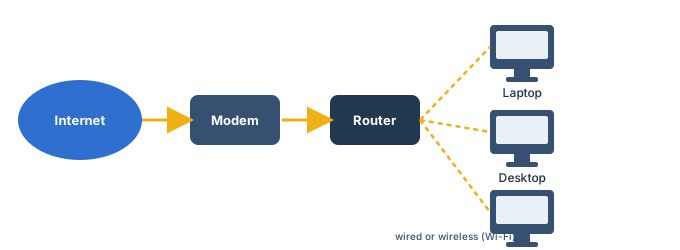
The primary piece of hardware you need is a modem, and a modem is necessary to connect your computer with the Internet. The word "Modem" is short for Modulation and Demodulation, and a modem is also what connects your computer to the telephone line. The type of Internet access you choose determines the type of modem you need: dial-up access uses a telephone modem, DSL service uses a DSL modem, cable access uses a cable modem, and satellite service uses a satellite adapter. Your ISP may give you a modem (often for a fee) when you sign a contract, which helps ensure you have the right kind; but if you prefer a better or cheaper one, you can buy a modem separately.
Router
A router is a hardware device that allows you to connect several computers and other devices to a single Internet connection, which is known as a home network. Many routers are wireless, allowing you to easily create a wireless network. You do not necessarily need to buy a router to connect to the Internet — it is possible to connect your computer directly to your modem using an Ethernet cable, and many modems now include a built-in router, so you can create a network without buying more hardware. Most routers also act as a hardware firewall, which helps prevent people from gaining access to your computer through the Internet.
Network Card (NIC)
A network card is a piece of hardware that allows computers to communicate over a computer network. Most newer computers have a network card built into the motherboard, so it is probably not something you will need to purchase. The network card will have an Ethernet port, a wireless connection, or both. If you have a laptop with a wireless connection, you can access the Internet at any place that offers a Wi-Fi connection. Many restaurants, coffee shops, bookstores, hotels and other businesses offer free Wi-Fi, and many cities provide free Wi-Fi in public areas such as parks and downtown districts.
Setting Up Your Connection & Home Network
Setting up your Internet connection
Once you have chosen an ISP and purchased the appropriate modem, you can use the instructions provided by your ISP (or included with the modem) to set up your Internet connection. Depending on the type of service you have, your ISP may need to send a technician to your house in order to turn the connection on. After you have everything set up, you can open your web browser and begin using the Internet. If you have any problems with your connection, you can call your ISP's technical-support number.
Using a home network
Each computer on a network does not just connect to the Internet — it also connects to the other computers and devices on the network. That means you can easily share files with other computers, and some programs even let you stream music and movies from one computer to another (one example is the Home Sharing feature in iTunes). These features are easy to set up, but it is entirely up to you whether you want to use them.
A home network can be wired (using Ethernet cables) or wireless (using Wi-Fi). It may also be a mixture of the two, with some devices connecting by Ethernet and others connecting wirelessly. Wireless is generally more convenient; however, with wireless you will need to think carefully about security.
Important wireless-security terms
- SSID (Service Set Identifier) — commonly called the SSID, this is the name of a wireless network. You should change the default SSID to something unique that you will remember. You may not want to use your actual name, but you can use a hobby or other interest.
- Encryption password — a series of characters used to control access to the network. For even greater security, some people use a passphrase, which is longer (and therefore more secure) than a password. Choose a password or passphrase that is easy for you to remember but hard for other people to guess.
- Encryption — encryption prevents unauthorized people from reading the data that is transmitted over your wireless network. The data is coded into an unreadable form, and it can only be decoded by a computer that has the correct password (or passphrase). The most common types of encryption for wireless networks are WPA (Wi-Fi Protected Access) and WPA2.
Setting Up a Home Network — Steps
Before you set up your home network, you will need to have a working Internet connection. The exact process of creating a network will vary depending on what type of computer you have, as well as what type of Internet service you have, so you should always use the instructions provided by your ISP. The following steps give you an idea of what to expect.
If your network is not working, the instructions from your ISP should include some troubleshooting tips. You can also call your ISP's technical-support number if you are still having trouble.
Web Browsers
A web browser is the tool you use to access the World Wide Web. The browser's main job is to display web pages. It also lets you create Bookmarks (sometimes called Favorites) for sites you like, so you can easily find them again later. A browser is a software program for getting information from the WWW, and it is an example of application software.
To recap, the World Wide Web is a virtual network of web sites connected by hyperlinks, and because those web sites are stored on servers on the Internet, the Web is a part of the Internet. Your computer probably came with a browser preinstalled: PCs come with Internet Explorer (a Microsoft web browser installed with Windows by default) and Macs come with Safari. If you prefer a different browser, you can download Firefox, Google Chrome or Opera — all of these browsers are free.
Today, Chrome and Internet Explorer are the most popular web browsers; other browsers include Firefox, Safari and Opera. Each one has its own look and feel, but they all share the same goal: to display web pages correctly. For most web pages, any well-known browser will work.
Like most modern programs, browsers use a Graphical User Interface (GUI), which means you can navigate by pointing and clicking with a mouse instead of just typing. Some devices, such as mobile phones, use different types of GUI, such as touchscreens; however, many of the principles remain the same. Usually a computer comes with just one default browser already installed.
Navigating to a Web Site
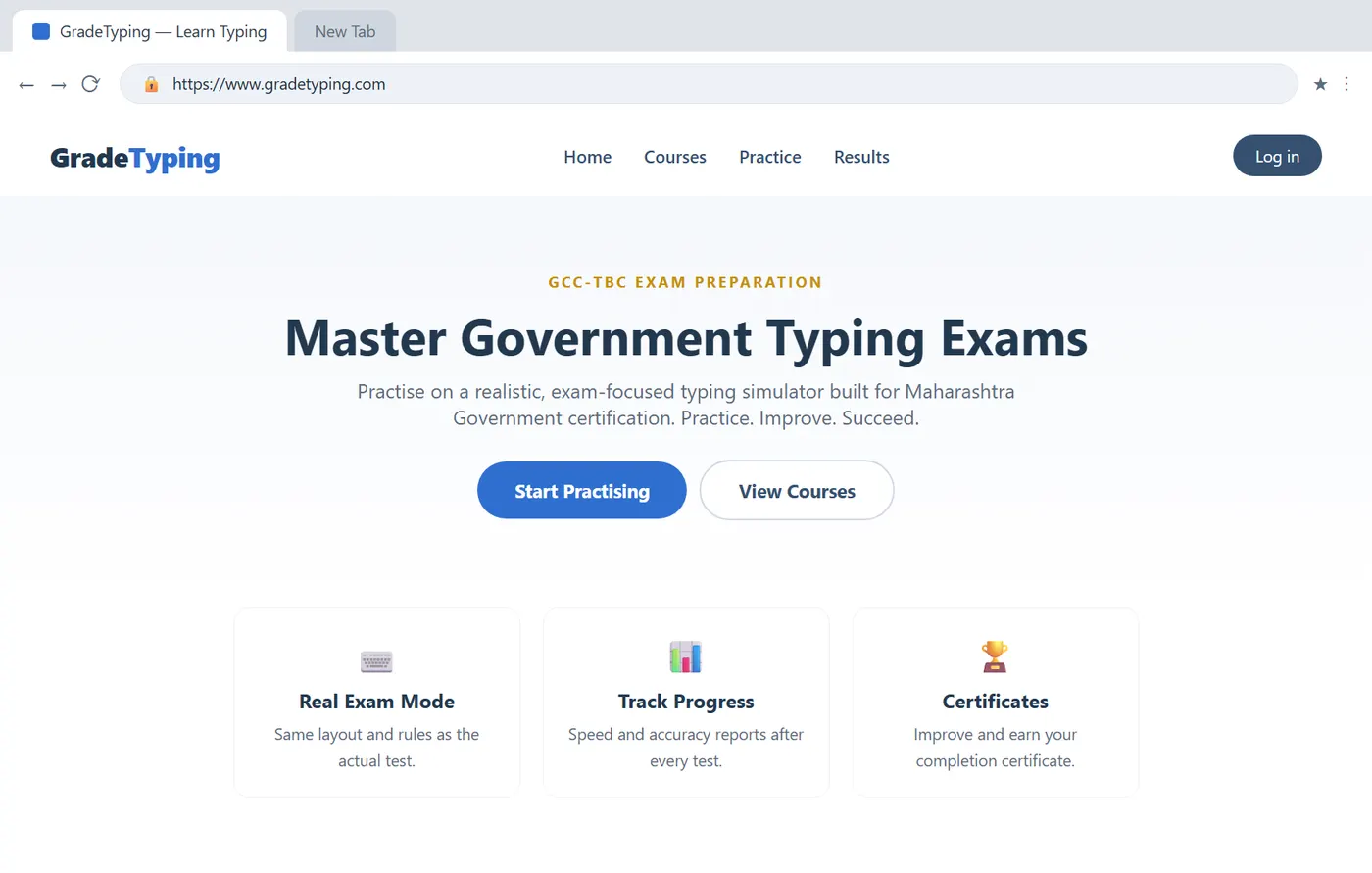
To get the most out of your web browser there are some basic concepts you need to be familiar with, including navigation, downloading, bookmarking, tabbed browsing and plug-ins. The labelled diagram below shows the main controls of a browser; each is explained underneath.
Address Bar & Links
Browsers have an address bar that shows the web address (URL) of the page you are on. To go to a different page, you can type an address in the address bar and then press Enter (or Return). Most of the time, though, you reach a different page by clicking on a link. A link can be text or an image, and it is usually formatted to stand out so that you know to click on it — many text links are blue and may also be underlined. A link may lead to another web page, or to a document, a video, or any other type of file. If you are not sure whether something is a link, hover the mouse over it: the pointer should change into a hand symbol. We visit another web page by using hyperlinks.
Navigation Buttons (Back & Forward)
Sometimes, after you click on a link, you may want to go back to the previous page. You can do this using your browser's Back button (in Internet Explorer the Backspace key does the same thing). Once you have pressed the Back button, you can press the Forward button to follow the link again. When you use the Back and Forward buttons, your browser may use its web cache to display the page. The web cache stores recently-viewed web pages so that they do not need to be downloaded again — that is usually good because it speeds up your browsing.
The Refresh Button
Sometimes you want to see the most up-to-date information on a page rather than the cached copy. You can use the Refresh button (sometimes called Reload) to tell the browser to load the page again — it is the button used to reopen a web page. There are, however, some cases where you should not use the navigation buttons: for example, in some online stores you should not refresh the page after purchasing an item, because it could cause you to purchase the item twice.
Bookmarks, History, Tabs & Downloads
The Search Bar & online safety
Some browsers have a built-in search bar for performing web searches. However, many browsers have combined the address bar and the search bar into a single bar, where you can type either web addresses or search terms. A word of caution: some web sites may track your activities online, usually for marketing purposes, and it is also possible to encounter malicious sites that could harm your computer — so avoid opening unknown links.
Adding Bookmarks
If you have found a page you would like to go back to later, you can add it to your bookmarks (sometimes called favorites). Bookmarks make it easier to find a page later: instead of having to remember the exact web address, you can just scroll through your bookmarks until you see the name of the page. In Internet Explorer 9, for example, you can add a bookmark by clicking the star icon and then selecting Add to Favorites. Other browsers are similar, though they may use slightly different wording.
Browsing History
Suppose you visited a page a few days ago but forgot to bookmark it. You can find the page again by using your history, which is a list of the web sites you have visited. Usually, pages will stay in the history for a certain number of days. To maintain your privacy, you can delete your history at any time.
Tabbed Browsing
Many browsers allow you to open a link in a new tab. This lets you keep the current page open instead of going directly to the new one. For example, if you are reading an article that contains a link, you can open the link in a new tab so that you can finish reading the article first, then switch to the new tab to view the link. Tabs are designed to make browsing more convenient: you can open as many links as you want and they will stay in the same browser window, instead of cluttering up your screen with multiple windows. To open a link in a new tab, right-click the link and click Open in new tab (the wording may vary from browser to browser). To close a tab, click the "X" on the tab.
Downloading Files
Your browser can display many different types of documents, media and other files. But there are times when you want to access a file outside your browser. Downloading lets you do this by putting the file on your computer so you can access it — it moves a copy of the file from the web site to your computer (not the other way round). For example, suppose you needed to complete and print a form you found online: you could download it to your desktop, then open it with the appropriate program (such as Microsoft Word) to edit it. When you click on a link to a file, it may download automatically, but sometimes it just opens within your browser instead. To prevent it from opening in the browser, you can right-click the link and select Save Target As… (different browsers may use slightly different wording); you will then be able to choose the folder where the file is saved.
Search Engines & Strategies
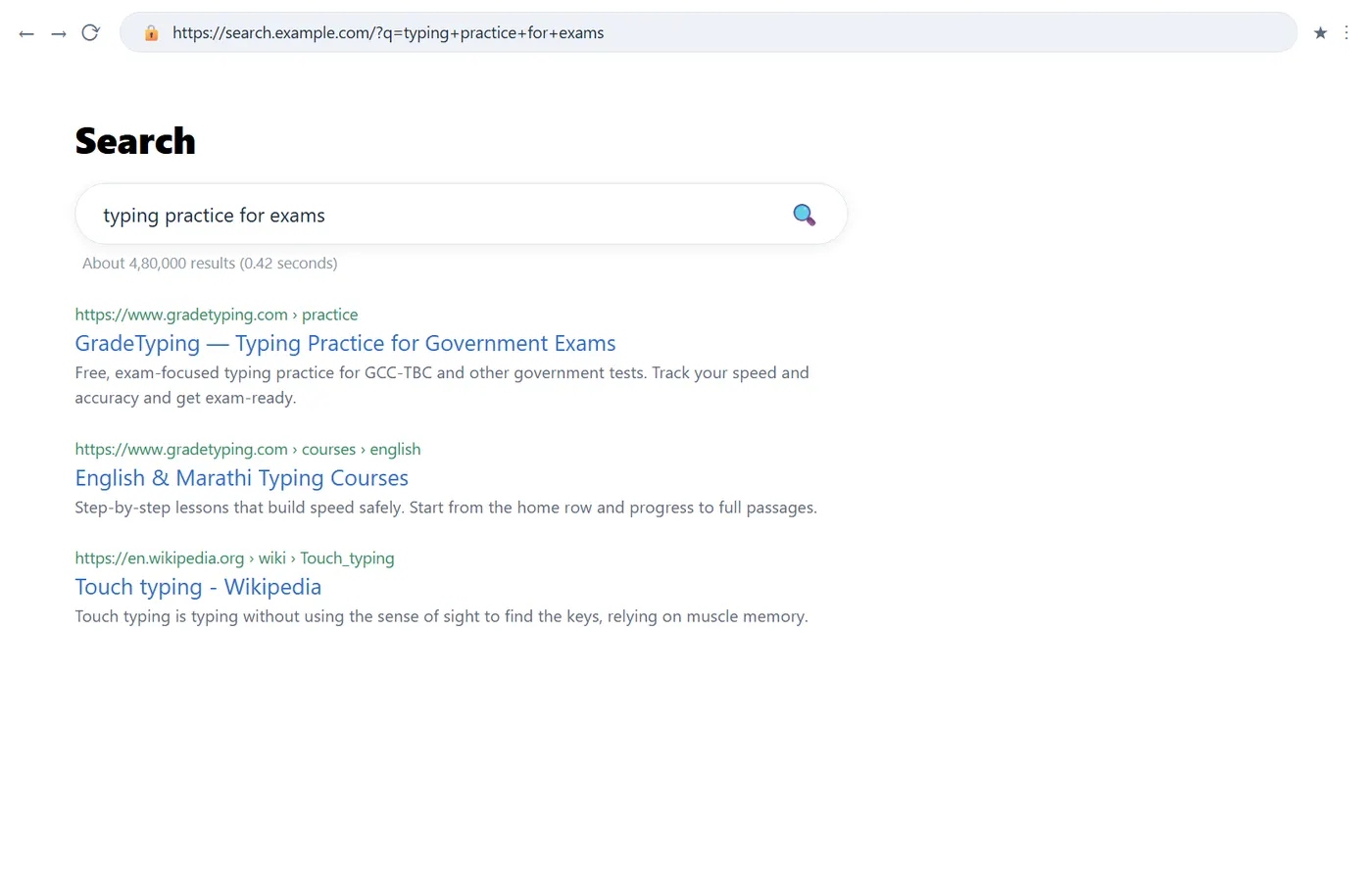
With billions of web pages on the World Wide Web, how can you find exactly what you are looking for? For that you always need a search engine. Search engines are specialized web sites that help you find what you are looking for on the Web. All you have to do is type in one or more keywords, and the search engine will look for matching web sites from all over the Web. A search engine also helps you reach web sites without typing the full address. There are numerous search engines, but the most popular ones are Google, Yahoo and Bing; each has its own unique features, but the process of doing a search is very similar on each.
Using the search bar
Many browsers have a built-in search bar, located to the right of the address bar. To do a search, just type what you are looking for (the search terms) in the search bar and then press Enter. The browser will take you to the search engine's web site to show the search results — a list of all the web sites that contain your search terms. Many browsers also allow you to add to or change the search engines used by the search bar.
Assessing the search results
After you do a search, glance over the first page of results. Did it return what you wanted, or is it just a lot of unnecessary "junk"? If your results do not seem very good, you may need to try different search terms — remember, the search engine cannot read your mind; it just looks for matching words. For example, if you simply search for the word polish, the engine does not know whether you mean shoe polish or the history of the Polish language. Searching for "shoe polish" improves matters, but that may still return a wide variety of sites — stores that sell shoe polish, guides on how to polish shoes, the history of shoe polish, and much more. To get the best results, ask yourself: "What exactly am I looking for?" — specific terms usually return better results.
Related searches, advertisements & specialised searches
- Related searches — a search engine will often recommend related searches that are more specific than your terms. They are usually listed at the bottom of the page; Bing also lists them to the left of the results.
- Advertisements — search engines may include ads along with the results, picked based on your search terms, and they look a lot like the actual results. They can be useful, but it is usually more effective to focus on the "regular" results. Google puts its ads at the top and to the right of the results.
- Specialised searches — as you gain experience you will search better and faster. If you are looking for news, images, videos or online stores, use a specialised search for that type of content. For example, an image search finds and displays images for you, instead of links to pages that may or may not have relevant images. A search engine usually puts links at the top of the page to reach these specialised searches.
Introduction to Email & Its Uses
You may already know that email (electronic mail) is a way to send and receive messages across the Internet, but perhaps not how individual emails are sent, what they cost, or how email compares to traditional "snail" mail. Email is a medium of communication, and one important fact for the exam is that it is free — you do not need to pay for sending and receiving emails. The email system is used to send electronic messages.
Email is usually packaged together with a calendar, address book, instant messaging and more, for convenience and productivity. If you want to sign up for accounts like Facebook, or order products from services like Amazon, you will need an email address so that you can be safely identified and contacted. Email service providers also give you tools that allow you to file, label, prioritize, find, group and filter your emails for easy management — you can even easily control spam, or junk email.
Uses of Email
- To access web services — you can access almost any web service by using email (it is the identity you sign up with).
- To communicate with multiple people — you can send one email to many people at once, giving you the option of holding a conversation with several people or sending a single message out to a hundred.
- Privacy — your email is delivered to your own personal and private account, with a password required for accessing and viewing it.
- Access anywhere, anytime — you do not have to be at home to get your email; you can access it from any computer or mobile device that has an Internet connection.
- For marketing — nowadays email marketing is one of the best marketing services for promoting (branding) a product.
Email Addresses & Providers
Understanding email addresses
To receive emails you need an email account and an email address; and if you want to send emails to other people, you need to obtain their addresses too. It is important to learn how to write email addresses correctly, because if you do not enter them exactly right your emails will not be delivered, or they might be delivered to the wrong person — this is why the email address is the most important part of a message.
Email addresses are always written in a standard format that includes a username, the @ (at) symbol, and the email provider's domain. The username is the name you choose to identify yourself, and the provider is the website that hosts your email account. The @ symbol always separates the two parts, and a dot (.) separates the domain name from the domain code.
Examples: (1) [email protected] — here student.education is the username and gmail.com is the domain; (2) [email protected] — here learner522 is the username and yahoo.com is the domain. Usernames often contain numbers and shortened versions of a name to prevent duplicates. Some businesses and organizations provide emails with their own website domain, for example [email protected]. To send an email to several people at once, type all the addresses separated by a comma (,).
Email providers
In the past, people usually received an email account from the same company that provided their Internet access — for example, if AOL provided your Internet connection, you had an AOL email address. While this is still true for some people, today it is increasingly common to use a free web-based email service, also known as webmail. Anyone can use these services, no matter who provides their Internet access. Today the top three webmail providers are Yahoo!, Microsoft's Hotmail, and Google's Gmail. These are popular because they let you access your email from anywhere with an Internet connection, including on your mobile devices.
Other providers & domain codes
Many people also have an email address hosted by their company, school or organization; these addresses are usually for professional purposes, and the organization will show you how to access it. Many hosted domains end with a suffix other than .com. The end of a domain shows its type: .gov for government websites, .edu for schools, .mil for military, .net for a large network site, .org for non-profit organizations, and the Internet country code for India is .in. Companies such as Microsoft Outlook (and Outlook Express) provide information-management software for communicating and managing email; it works with any provider but is most commonly used by organizations that host their own email. Webmail providers also offer extra productivity features, part of a productivity suite — for example instant messaging (chat), which lets you have text-based conversations with other users.
Creating an Account & the Email Interface
Getting started — get your own email account
When you are ready, you can sign up for your own account with one of the three major webmail providers: on Yahoo! Mail click Create New Account; on Hotmail click Sign Up Now; and on Gmail click Create an account.
Creating a Gmail account — step by step
In Mozilla Firefox or Google Chrome, follow these steps:
- Visit the web site www.google.com and click on the link Gmail.
- Click on the link use another account, then click on Create account.
- Click on for myself and fill in your details, then click Next.
- Fill in the next details with your mobile number and click send.
- Click verify and type the OTP you have received on your mobile number; then click Yes, I am in.
- Click I agree, click next and then OK, and finally sign out from your account.
Understanding the email interface
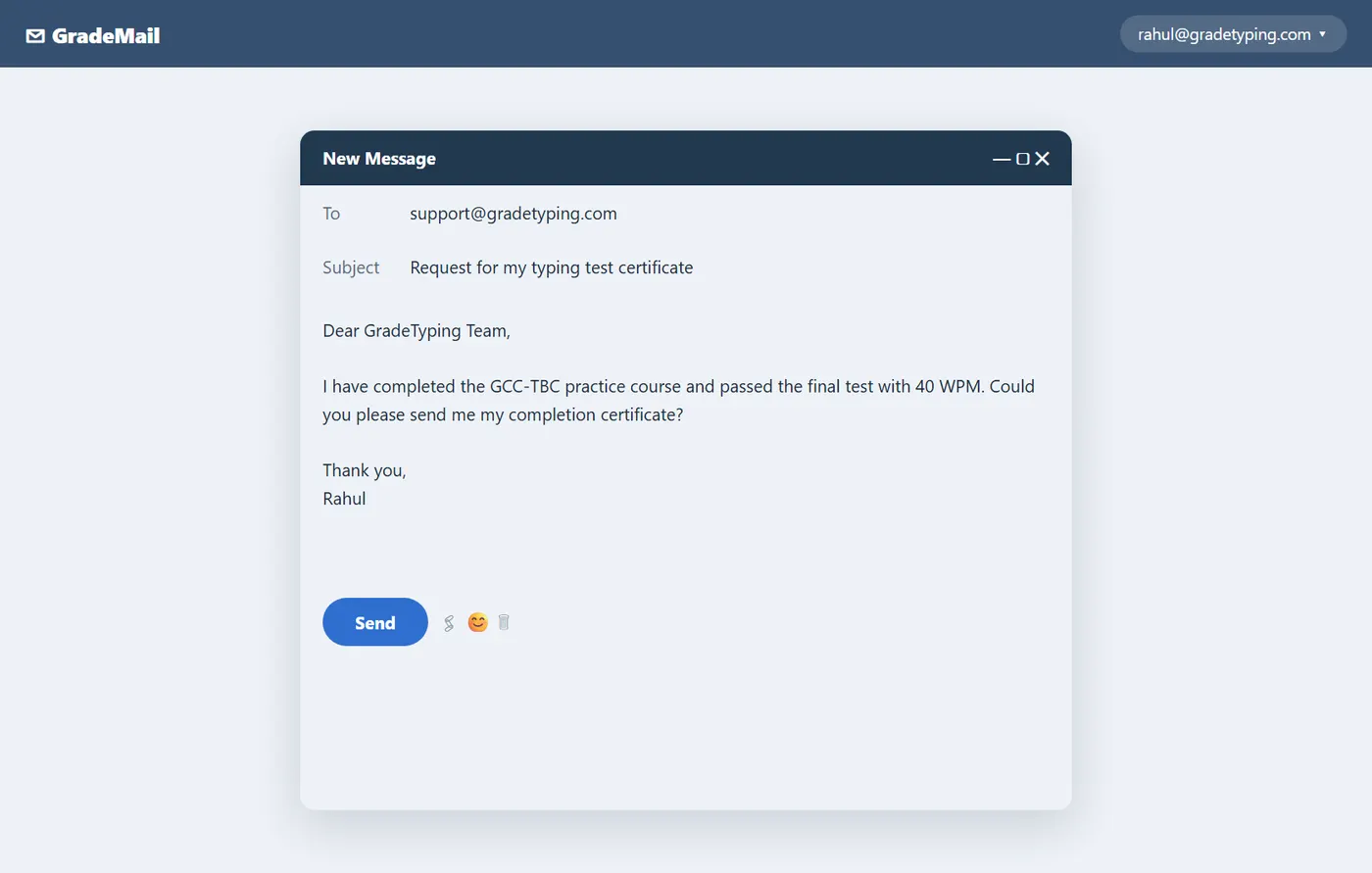
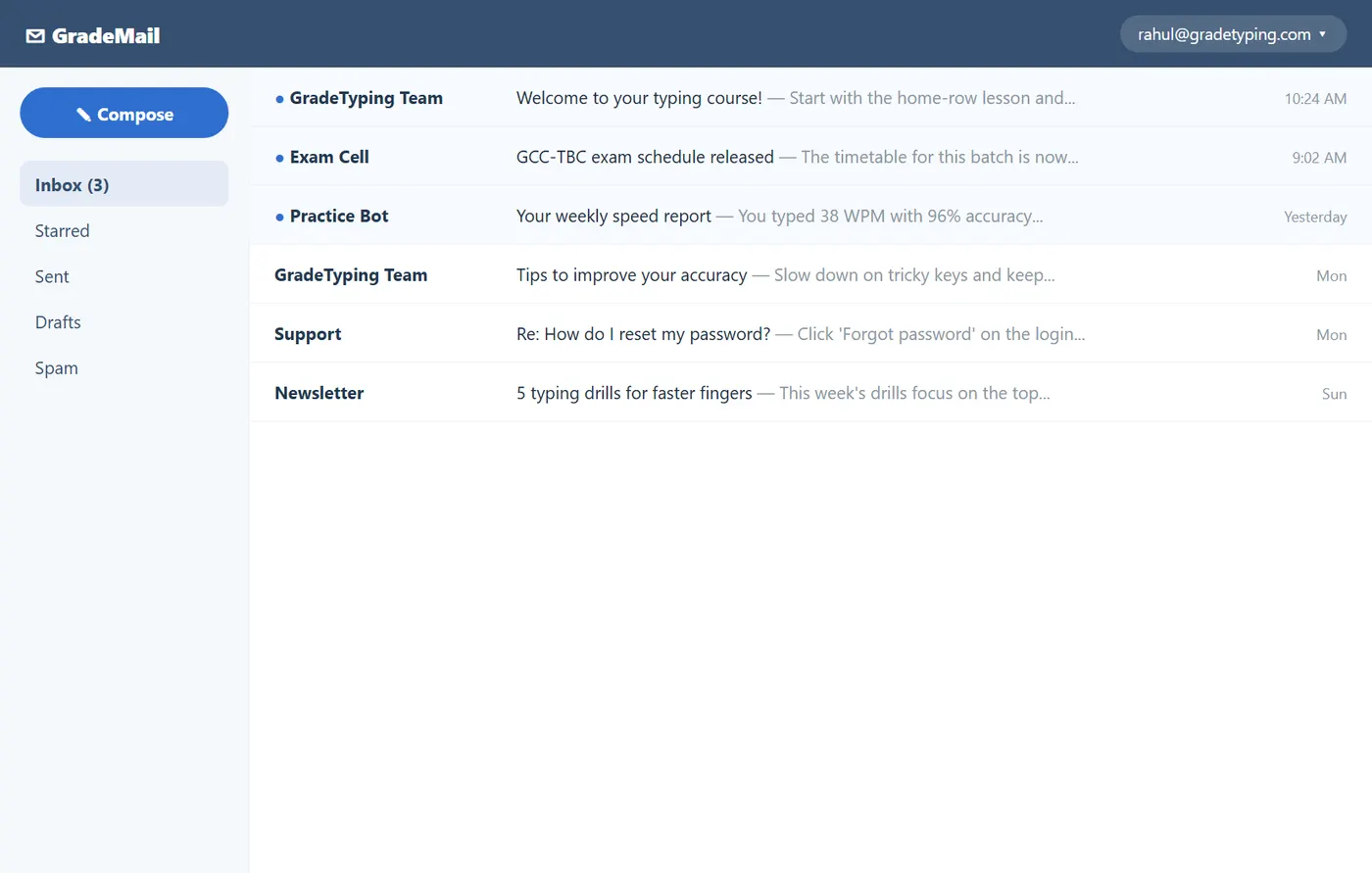
No matter which email service you choose, you need to learn how to interact with its interface, especially the Inbox, the Message pane and the Compose pane. The interface may look and feel different from provider to provider, but they all function in essentially the same way.
- Inbox — where you view and manage the emails you have received; each is listed with the name of the sender, the subject and the date received.
- Message pane — when you select an email in the inbox, it opens here, where you can read the message and choose how to respond with a variety of commands (Reply, Forward, Delete).
- Compose pane — click Compose or New to open a blank message. Enter the recipient's address in the To box and write a Subject; you can also upload files (photos, documents) as attachments and add formatting.
- Sending — after composing with all details and attachment, click Send. You can see your sent emails in the Outbox or Sent menu.
Sending an attachment (an attached file or document) with an email is known as uploading, while opening a received attachment is known as downloading. The attachment button usually shows a pin icon. Reply sends an answer back to the sender, and Forward sends a received email on to someone else (you can edit it before forwarding). A Signature is text automatically inserted at the bottom of every email, and the Address Book stores email addresses. Received email appears in the Inbox, and deleted email goes to Trash, from where it can be recovered — deleted mail is never removed instantly.
Networking — Devices & Addresses
Computer networking refers to connected computing devices — such as laptops, desktops, servers, smartphones and tablets — together with an ever-expanding array of IoT (Internet of Things) devices such as cameras, door locks, doorbells, refrigerators, audio/visual systems, thermostats and various sensors, all of which communicate with one another. In a network, the main computer is called the Server Computer, and the other connected computers are called client or node computers.
The devices that build a network
Specialized devices — switches, routers and access points — form the foundation of computer networks:
A switch connects and helps internally secure devices within a home or organization. An access point is a switch that connects devices to a network without the use of cables. A router connects networks to other networks and acts as a dispatcher: it analyses the data to be sent across a network, chooses the best routes for it, and sends it on its way. Routers connect your home and business to the world and help protect information from outside security threats.
Two kinds of address: MAC and IP
While switches and routers differ in several ways, one key difference is how they identify end devices. A Layer 2 switch uniquely identifies a device by its "burned-in" MAC (Media Access Control) address, whereas a Layer 3 router uniquely identifies a device's network connection with a network-assigned IP (Internet Protocol) address. Today, most switches include some level of routing functionality. MAC and IP addresses uniquely define devices and network connections respectively: a MAC address is a number assigned to a Network Interface Card (NIC) by a device's manufacturer, while an IP address is a number assigned to a network connection.
Types of Networks
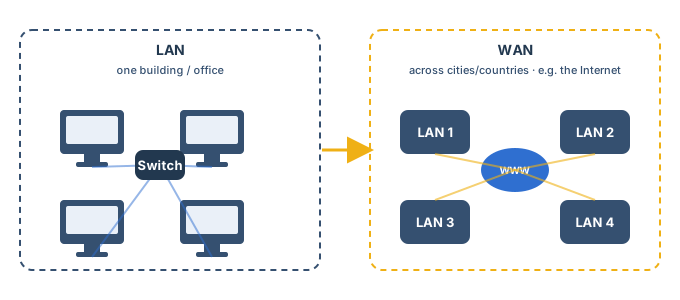
Computer networks are classified by the area they cover and the organisation they serve. The four main types described in the syllabus are explained below.
Wired vs Wireless & Components
There are two primary types of computer networking: wired networking and wireless networking.
Wired networking
Wired networking requires the use of a physical medium for transport between nodes. Copper-based Ethernet cabling, popular because of its low cost and durability, is commonly used for digital communications in businesses and homes. Alternatively, optical fibre is used to transport data over greater distances and at faster speeds — in a fibre-optic cable, data is transferred through light pulses — but it has several trade-offs, including higher costs and more fragile components.
Wireless networking
Wireless networking uses radio waves to transport data over the air, enabling devices to be connected to a network without any cabling. Wireless LANs are the most well-known and widely deployed form of wireless networking. Alternatives include microwave, satellite, cellular and Bluetooth, among others.
As a general rule, wired networking offers greater speed, reliability and security compared with wireless networks, whereas wireless networking tends to provide more flexibility, mobility and scalability.
Components of networking
Computer networking requires physical network infrastructure — including switches, routers and wireless access points — and the underlying firmware that operates such equipment. Other components include the software necessary to monitor, manage and secure the network. In addition, networks rely on standard protocols to uniformly perform discrete functions or communicate different types of data, regardless of the underlying hardware. For example:
- VoIP (Voice over Internet Protocol) can transport IP telephony traffic to any endpoint that supports the protocol.
- HTTP (HyperText Transfer Protocol) provides a common way for browsers to display web pages, transferring data in the form of text.
- TCP/IP (Transmission Control Protocol/Internet Protocol), also called the Internet protocol suite, is a family of protocols responsible for transporting data and services over an IP-based network — it is the most common Internet protocol.
What Is a Network Policy?
A network policy is a collection of rules that govern the behaviours of network devices. Just as a federal or central government may lay down policies for states or districts to follow in order to achieve national objectives, network administrators define policies for network devices to follow in order to achieve business objectives.
Benefits of network policy
A network that runs on policies can be automated more easily and can therefore respond more quickly to changing needs. Many common tasks — such as adding devices and users, and inserting new applications and services — can now be accomplished easily. Well-defined policies benefit a network in the following ways:
- Align the network with business needs.
- Provide consistent services across the entire infrastructure.
- Bring agility through greater automation.
- Make performance dependable and verifiable.
An even bigger advantage to enterprises is the security gains from policy. By granularly defining policies that give users and devices the least amount of access they need to do their jobs, you can better protect sensitive data, and violations can be caught and mitigated quickly. Such zero-trust security measures reduce risk, contain threats, stop the lateral movement of malware, and help verify regulatory compliance. Think of network policies as objectives or goals: without clear objectives, the network cannot be set up to deliver optimally, and without goals its performance cannot be measured.
How policies work across the network
- Business intent & agility — policies reflect business intent. Network controllers ingest business intent and create policies that help achieve desired outcomes; the policies are enforced and carried out by network equipment such as switches, routers, wireless access points and wireless LAN controllers. Networks run ad hoc, without guiding policies, will likely fail to deliver optimally.
- Consistency of experience — well-executed policies provide consistent service throughout the network, regardless of location, means of connectivity, or devices in use, so users and things have the same access privileges and quality of experience from anywhere.
- Network automation — with guidance in place, configurations can be automated and orchestrated so that each device does what is required to achieve the larger objectives.
- Performance monitoring — once well-understood goals are defined, metrics can be established to measure how the network is delivering, and continuous analysis ensures policies are followed and objectives are met.
- Network security — with policies in place, any violations are easier to detect, security is more easily enforced, threats are more quickly contained, and risk is rapidly reduced.
Key Facts to Remember
Use this page for last-minute revision — every entry is an answer that appears in the exam question bank.
| Internet = | Network of networks (largest WAN) | Internet started as | ARPAnet (1969) |
| WWW created by | Tim Berners-Lee (1989) | Web page address | URL |
| Modem stands for | Modulation + Demodulation | Main device to connect | Modem |
| Email format | username @ domain | India's country code | .in |
| Most common protocol | TCP/IP | Browser tracks pages in | History |
| Fibre cable carries | Light pulses | The Internet works on | Packets |
| Deleted email goes to | Trash (recoverable) | Attachment icon | Pin (U-pin) |
Quick word list
- Online = connected to the Internet · Surfing = moving from site to site.
- Downloading = web site → your computer · Uploading = sending an attachment.
- Server = main computer · Client / Node = the other connected computers.
- .gov = government · .edu = school · .mil = military · .net = network · .org = non-profit · .in = India.
- Browser examples: Chrome, Internet Explorer, Firefox, Safari, Opera (Windows Explorer is NOT a browser).
- Email programs: Microsoft Outlook, Outlook Express · Email client: Gmail · Spam viruses spread via attachments/links.
Exam Question Bank
All 104 objective questions frequently asked in GCC-TBC and computer exams on Internet & Networking, with the answer beside each. The theory in this book teaches the answer to every one.
| # | Question | Answer |
|---|---|---|
| 1 | You can send a/an ___ with an email by uploading it. | Attachment |
| 2 | ___ is a Microsoft web browser installed with Windows by default. | Internet Explorer |
| 3 | After using the Back arrow, you can switch to the next webpage using the ___. | Forward arrow |
| 4 | When you move the mouse pointer onto a hyperlink, it changes to a ___ shape. | Hand |
| 5 | To go to the previous page, the ___ key is used in Internet Explorer. | Backspace |
| 6 | The Internet domain country code used by India is ___. | .in |
| 7 | Saving files to your computer from the Internet is called ___. | Downloading |
| 8 | The ___ button is used to reopen (reload) a web page. | Refresh |
| 9 | You need to pay for sending and receiving emails. | False |
| 10 | A ___ is necessary to connect a computer to the Internet. | Modem |
| 11 | It is possible to forward an email by clicking the Forward button. | It is possible |
| 12 | To reply to a mail, you click the ___ button. | Reply |
| 13 | Client PCs communicate with each other within a network through the ___ only. | Server |
| 14 | We can use the Internet for ___. | All of the above |
| 15 | A web page has a unique address, which is called the ___. | URL |
| 16 | To make a computer online, it must be ready to send/receive data — this needs a ___. | Modem |
| 17 | When a computer is online, it is ready to send or receive data from other devices. | True |
| 18 | The word 'Modem' is short for ___ and ___. | Modulation and Demodulation |
| 19 | The special computer that stores ___ is called a server. | Network programs and data |
| 20 | Which of the following is NOT required in order to send an email? | Webpage |
| 21 | ___ is the most common Internet protocol. | TCP/IP |
| 22 | A browser is a software program for getting information from the WWW. | True |
| 23 | We can send one email to ___ at a time. | Many addresses |
| 24 | Communication between computers can be established with the help of ___. | All of the above |
| 25 | Using a ___ we can search for websites. | Search engine |
| 26 | Email is a medium of ___. | Communication |
| 27 | ___ is text automatically inserted at the bottom of every email. | Signature |
| 28 | Gopher is an Internet ___. | Search tool |
| 29 | Emails sent to other accounts are shown in the ___ menu. | Sent Item |
| 30 | You look at WWW documents using ___. | All of the above |
| 31 | A domain name ending with '.gov' is a ___. | Government website |
| 32 | What is a web browser? (as per source) | E-Mail client software |
| 33 | Data in a ___ cable is transferred through light pulses. | Fibre Optic |
| 34 | The equipment needed to allow most computers to connect to the Internet is called a ___. | Modem |
| 35 | The attachment button shows a ___ icon on it. | U pin |
Exam Question Bank (cont.)
| # | Question | Answer |
|---|---|---|
| 36 | The number of default web browsers is ___. | One |
| 37 | We can use the ___ to open a webpage we have previously visited. | Backward arrow |
| 38 | With the help of a ___ we connect a computer and a telephone. | Modem |
| 39 | Which of these terms is a browser? (as per source) | E-Mail client software |
| 40 | We can visit another webpage by using ___. | Hyperlinks |
| 41 | Every website has a unique address. Which is it called? | URL |
| 42 | ___ is web browser software. | Internet Explorer |
| 43 | Files sent with an email are called ___. | Attachments |
| 44 | Deleted emails are permanently removed from the email account. | Never |
| 45 | The ___ in a network is called the Server. | Main Computer |
| 46 | The Internet is a ___. | Network of Networks |
| 47 | With a ___ system, people in different locations can discuss like a meeting. | Video Conferencing System |
| 48 | ___ is an example of application software. | Browser |
| 49 | Email is used to communicate over the Internet. | True |
| 50 | Passwords are shown as ___ on the screen. | Black dots |
| 51 | Which one of the following is the most common Internet protocol? | TCP/IP |
| 52 | Deleted emails are shown in the ___ menu. | Trash |
| 53 | Hypertext is text with many images and sounds. | False |
| 54 | Forwarding an email means sending a ___. | Received E-Mail |
| 55 | To send an email to multiple accounts, type all the IDs ___ separated. | Comma (,) |
| 56 | Which of the following is used to search content online? | Search Engine |
| 57 | Which software below is an email client? | Gmail |
| 58 | Internet Explorer is developed by ___. | Microsoft |
| 59 | It is possible to reply to a received email. | True |
| 60 | All modems are located inside the computer. | False |
| 61 | While composing an email, we ___ need to type the email id. | Always |
| 62 | Software such as Internet Explorer and Firefox are referred to as ___. | Browser |
| 63 | HTTP is the protocol that transfers data in the form of ___. | Text |
| 64 | An email program can store email addresses in the ___. | Address Book |
| 65 | You can get infected by a virus via ___. | Both A and B |
| 66 | What type of software is a web browser? | Application Software |
| 67 | We can edit a mail before forwarding it. | True |
| 68 | A website is a complete collection of web pages and folders. | True |
| 69 | Is it possible to reply to an email by clicking the Forward button? | It's not possible |
Exam Question Bank (cont.)
| # | Question | Answer |
|---|---|---|
| 70 | To send an email to someone, we need to type the email id in the ___ box. | To |
| 71 | It is possible to send as well as receive attachments by mail. | True |
| 72 | A browser is a software program for getting information from the ___. | World Wide Web |
| 73 | To show a large network site, the ___ domain code is used. | .net |
| 74 | Destructive programs attached to spam email are called ___. | Viruses |
| 75 | The world-wide interconnected system of computer networks is called the ___. | Internet |
| 76 | A URL is nothing but a ___. | Web address |
| 77 | The Internet works on ___. | Packets |
| 78 | The Internet is a ___ type of network. | WAN |
| 79 | A file download moves a copy of a file from the local host to the remote host. | False |
| 80 | Email received by us is shown in the ___ menu. | Inbox |
| 81 | The client PCs can communicate with each other within the network through the server only. | True |
| 82 | ___ is an email program. | Outlook Express |
| 83 | What allows you to create a webpage with interactive content? | JavaScript |
| 84 | The Internet is a collection of ___. | Interconnected networks |
| 85 | Data in a fibre-optic cable is transferred through ___. | Light pulses |
| 86 | Is it possible to forward an email by clicking the Compose button? | It's not possible |
| 87 | A file download moves a copy of the file from the ___. | Website to computer |
| 88 | In Internet Explorer we can see recently visited sites using the ___ option. | History |
| 89 | Is it possible to delete an email by clicking the Delete button? | It is possible |
| 90 | The ___ system is used to send electronic messages. | |
| 91 | Using a ___ will help you get to websites without typing the address. | Search Engine |
| 92 | A browser is a software program for getting information from the WWW. | True |
| 93 | In an email message, the ___ part is very important. | Email Address |
| 94 | Which one of the following is a correct email address? | [email protected] |
| 95 | The Internet is a ___ system of networks. | World-wide |
| 96 | Which one of the following is NOT a web browser? | Windows Explorer |
| 97 | The server gives the client permission to share ___ in the network. | Resources |
| 98 | Separation of ___ is done by the Dot (.). | Domain name and Domain Code |
| 99 | From the ___ we can recover emails that were deleted from the inbox. | Trash |
| 100 | A domain name ending with '.net' is a ___. | A network site |
| 101 | The Internet is the ___ in the world. | Largest Network |
| 102 | A ___ is a program that provides tools for accessing websites. | Web Browser |
| 103 | The software that finds documents for us on the web using keywords is a ___. | Search Engine |
| 104 | Moving from one website to another is called ___. | Surfing |
Chapter Mind Map
One-glance revision of the whole chapter — follow each branch to recall the key points.
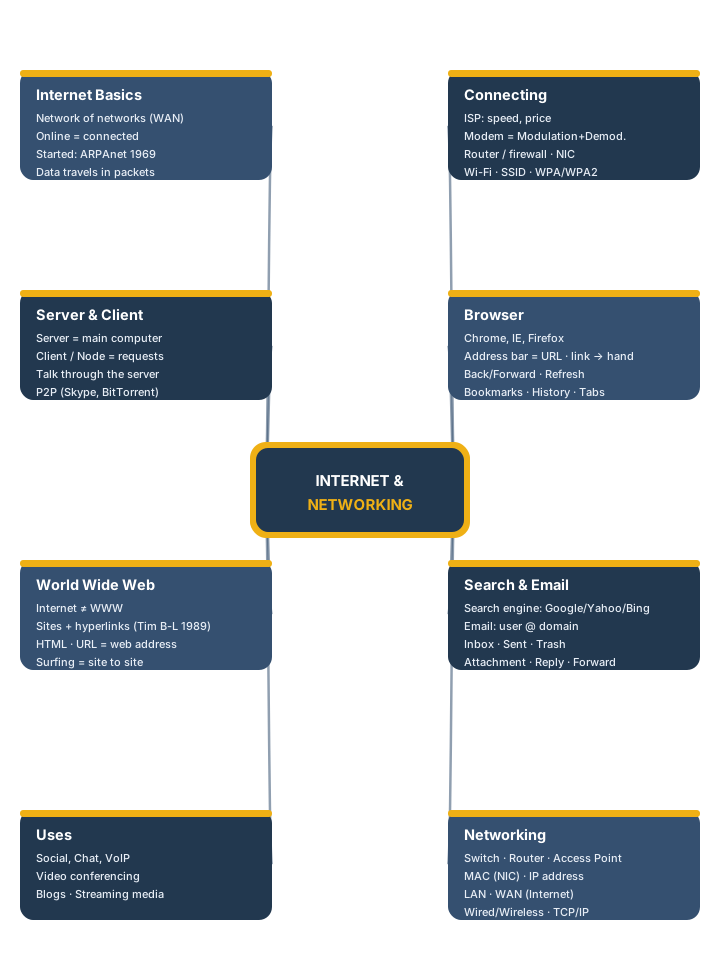
Image & Mockup Credits
All visuals in this book are original GradeTyping artwork. No screenshots from any other publisher were reused. Because Internet & Networking is a conceptual subject, the browser, search-engine and webmail screens are clean, brand-consistent HTML/CSS mockups (no real personal data), and the network concepts are taught with original SVG/CSS diagrams.
| browser.png | Web-browser mockup (tab, address bar, GradeTyping site) — built from mock/browser.html. |
| search.png | Search-engine results mockup — built from mock/search.html. |
| email_compose.png | Webmail Compose window mockup — built from mock/email_compose.html. |
| email_inbox.png | Webmail Inbox mockup (folders + messages) — built from mock/email_inbox.html. |
| diag_client_server.svg | Client–server request/response diagram. |
| diag_home_network.svg | Internet → Modem → Router → devices diagram. |
| diag_lan_wan.svg | LAN versus WAN diagram. |
| Browser anatomy | Pure-CSS labelled toolbar (Back/Forward/Refresh/Home/Address/Bookmark/Download/History). |
| Network devices | Pure-CSS Switch / Access Point / Router cards. |
| Email steps 1–4 | Pure-CSS Inbox → Message → Compose → Send strip. |
| mindmap_internet.svg | Chapter revision mind map. |