
What is a Computer?
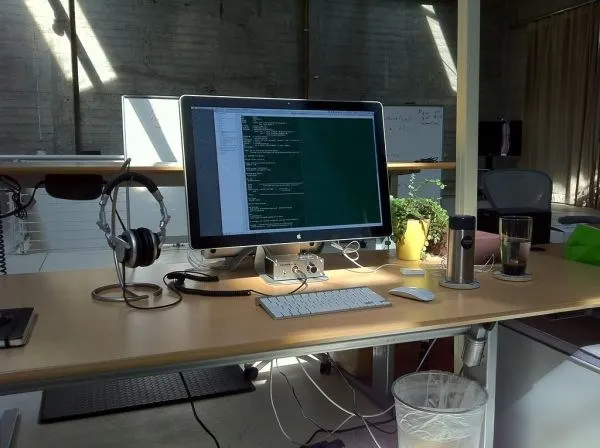
A computer is an electronic device that is used to store data and information and to process it. It is best understood as a collection of two components working together — Hardware and Software. The Hardware consists of the computer itself together with all the equipment that is connected to it, while the Software is the set of instructions that the computer follows in order to perform a task.
In everyday life a computer is the machine we depend on to connect with our family and friends who are living miles away, to store information, to book railway tickets, to access our bank accounts and to do hundreds of other tasks. None of these would be possible if the physical machine had no instructions to follow, which is why hardware and software always work as a pair: the hardware provides the body and the software provides the directions that body obeys.
A simple way to picture this: the hardware is like a musical instrument and the software is like the sheet music. A violin (hardware) can do nothing on its own; it produces music only when a player follows the notes (software). In the same way a computer is an empty, capable machine until a program tells it exactly what to do.
How a Computer Works
However complex a task may look, every computer carries it out by following the same five-step working cycle. These five steps are fixed and apply equally to a small calculator-like task and to a giant scientific calculation:
The heart of the working cycle is often summarised as the IPO cycle: Input → Process → Output, with storage and control supporting it throughout.
Uses of the Computer
The computer is used in almost every part of modern society. The seven fields below show how deeply it has entered our working life; in each field it does its job faster, more accurately and more cheaply than manual methods could.
1. Business
Computers are used in business organisations for a wide range of routine and analytical work. This includes payroll calculations (working out the salaries of employees), budgeting, sales analysis, financial forecasting, managing the employee database and the maintenance of stocks, among many other tasks. Because all of these involve large numbers and frequent updating, a computer handles them far more efficiently than a person with a ledger.
2. Banking
Nowadays banking is almost totally dependent on computers. Banks provide facilities such as the online accounting facility, which lets a customer check the current balance, make deposits and overdrafts, check interest charges, and look at shares and trustee records. The familiar ATM machine (Automated Teller Machine) is itself a computerised banking device that lets customers withdraw cash at any hour.
3. Education
The computer helps in providing a great many facilities in the education system. It supports teaching and learning, holds study material, allows online classes and tests, and keeps records of students and results.
4. Medicine
Computers have become an important part of hospitals, laboratories and dispensaries. In hospitals they are used to keep the records of patients and medicines, and to assist in scanning and diagnosing different diseases. Computerised machines also carry out tests such as the ECG, EEG, ultrasounds and CT scans, giving doctors accurate results quickly.
5. Military
Computers are used very widely in defence. They are applied to Missile Control, Military Communication, Military Operation and Planning and the control of Smart Weapons, where speed and precision can be a matter of life and death.
6. Communication
In the field of communication the computer powers e-mail, chatting and video-conferencing, allowing people to exchange messages and hold face-to-face meetings across any distance.
7. Government
Computers play an important role in government services. Some of the major fields are the Sales tax department, the Income tax department, the computation of the male/female ratio, the computerization of voters' lists, the computerization of the PAN card and weather forecasting.
Characteristics of Computers
A computer has become so widely used because it possesses a set of qualities that no human worker can match. The eight characteristics below explain exactly why the computer is trusted with such important work.
1. High Speed
A computer is a very fast device. It is capable of performing the calculation of a very large amount of data. Its units of speed are measured in the microsecond, nanosecond and even the picosecond — fractions of a second so tiny that they are hard to imagine. As a result it can perform millions of calculations in a few seconds, work that a human being would take many months to complete.
2. Accuracy
In addition to being very fast, computers are very accurate. Their calculations are 100% error free. A computer performs all jobs with 100% accuracy — provided that the input given to it is correct. (If the input is wrong, the output will be wrong too; this idea is often called "garbage in, garbage out".)
3. Storage Capability
Memory is a very important characteristic of computers. A computer has much more storage capacity than human beings. It can store a large amount of data, and it can store any type of data such as images, videos, text and audio.
4. Diligence
Unlike human beings, a computer is free from monotony, tiredness and lack of concentration. It can work continuously without any error and without boredom, and it can perform repeated tasks with the same speed and accuracy from the first task to the last.
5. Versatility
A computer is a very versatile machine and is very flexible in performing the jobs to be done. The same machine can be used to solve problems related to various fields. At one instant it may be solving a complex scientific problem, and the very next moment it may be playing a card game.
6. Reliability
A computer is a reliable machine. Its modern electronic components have long lives, and computers are designed to make maintenance easy.
7. Automation
A computer is an automatic machine. Automation is the ability to perform a given task automatically: once the computer receives a program — that is, once the program is stored in the computer's memory — the program and its instructions can control the program's execution without human interaction.
8. Reduction in Paper Work and Cost
The use of computers for data processing in an organisation leads to a reduction in paper work and speeds up the whole process. Because data held in electronic files can be retrieved as and when required, the problem of maintaining a large number of paper files is greatly reduced. Although the initial investment for installing a computer is high, it substantially reduces the cost of each of its transactions over time.
Disadvantages of Computers
Powerful as it is, the computer is still only a machine, and it has clear limitations. Understanding these limitations is just as important as knowing its strengths, because they explain why a human being must always remain in charge of the machine.
1. No Intelligence Quotient (I.Q.)
A computer is a machine that has no intelligence of its own with which to perform any task. Each instruction has to be given to the computer, and a computer cannot take any decision on its own. It can only follow what it has been told to do.
2. Dependency
A computer functions strictly as per the user's instruction, and is therefore fully dependent on humans. Without a person to direct it, the machine can achieve nothing.
3. Environment
The operating environment of the computer should be dust free and suitable. Excess dust, heat or moisture can damage the delicate electronic parts, so a clean and controlled place is required for the machine to work well.
4. No Feeling
Computers have no feelings or emotions. A computer cannot make a judgment based on feeling, taste, experience and knowledge the way a human being can. It deals only with the data it is given and never with intuition.
A computer is fast, accurate, tireless and reliable, but it has no I.Q., is fully dependent on its user, needs a clean environment, and has no feelings. It is a brilliant servant but never a master.
History of the Computer
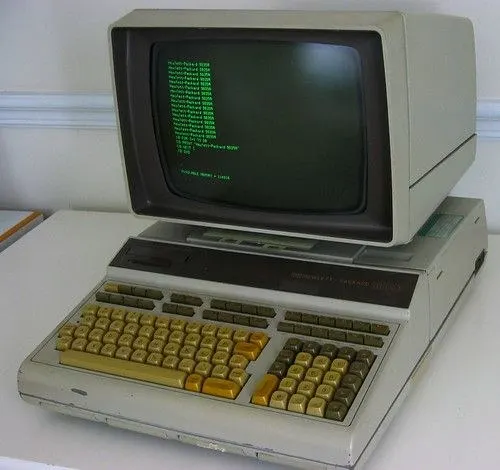
For a very long time man has tried to use machines to avoid his manual work. For purely physical work he created various tools, but for mental work — that is, for calculation — the first machine that was invented was the ABACUS.
The abacus was invented in China, and after that it was used in Rome, Greece and Japan. It is a square wooden frame that contains a number of wires in horizontal rows, and each row holds some small pebbles (beads). By the movement of those pebbles, simple calculations can be carried out. For this reason the abacus can be called the first computer in the world.
A great turning point came with the invention of zero in India, which brought about a revolution in digital calculation. The story of better and better calculating tools then continues through several important inventors:
- John Napier created a logarithm method. With these tables, the multiplication and division of bigger numbers became much more trouble-free — but the method was very lengthy to use.
- William Oughtred created the slide rule. With that method all the calculations could be done much more rapidly.
- Blaise Pascal (1642) created a mechanical-based calculator, an early machine that performed arithmetic with moving parts.
- Charles Babbage (1833) built what is regarded as the actual computer. It worked on mechanical gears and had a form of artificial memory. This machine was also called the "Analytical Engine". Because of this, Charles Babbage is called the Father of the Modern Computer.
- Lady Ada Lovelace created the first program for the Analytical Engine. For this reason she is called the first programmer in the world.
Finally, in 1939, the first electronic-based calculator was created. This electronic step opened the door to the modern computers we use today.
Abacus → zero (India) → Napier (logarithms) → Oughtred (slide rule) → Pascal (1642, mechanical calculator) → Babbage (1833 — father of the modern computer) → Ada Lovelace (first programmer) → first electronic calculator (1939).
Generations of Computer — Overview
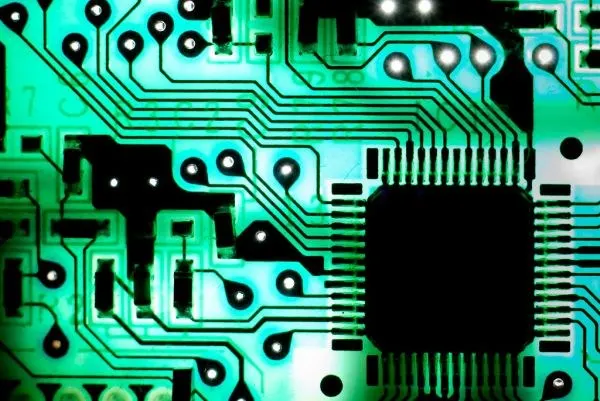
The digital computer has evolved through a series of technical innovations and developments. These stages are so clearly defined that the computers are said to belong to different generations.
In computer terminology, a generation means a change in the technology that a computer is being used with. Initially, the term "generation" was used to distinguish between the varying hardware technologies. Nowadays, however, a generation includes both hardware and software, which together make up an entire computer system. There are five computer generations known till date.
| Sr. No. | Generation | Description |
|---|---|---|
| 1 | First Generation | Period 1946 to 1959. Vacuum tubes are used. |
| 2 | Second Generation | Period 1959 to 1965. Transistors are used. |
| 3 | Third Generation | Period 1965 to 1971. Integrated Circuit used. |
| 4 | Fourth Generation | Period 1971 to 1980. VLSI microprocessor used. |
| 5 | Fifth Generation | Period 1980 onwards. ULSI microprocessor used. |
As we move from the first generation to the fifth, a clear pattern appears: the technology becomes smaller, the machines become faster, cheaper and more reliable, they generate less heat and use less electricity, and the languages used to control them become friendlier for human beings. The pages that follow describe each generation, its main features and its example machines in full.
Vacuum tubes → Transistors → Integrated Circuits (IC) → VLSI microprocessor → ULSI & Artificial Intelligence. Each step shrinks the components and multiplies the power.
First Generation (1946–1959)
The period of the first generation was from 1946 to 1959. The computers of the first generation used vacuum tubes as the basic components for the memory and circuitry of the CPU (Central Processing Unit). These tubes, like electric bulbs, produced a great deal of heat, and the installations used to fuse (burn out) frequently. Because of this they were very expensive, and only large organisations were able to afford them.
In this generation, mainly a batch processing operating system was used. Punch cards, paper tape and magnetic tape were used as the input and output devices. The computers in this generation used machine code as the programming language. (The very earliest first-generation machines date back to around 1940.)
Main features of the first generation
- Vacuum tube technology as the basic component.
- Unreliable in operation.
- Supported machine language only.
- Very costly.
- Generated a lot of heat.
- Slow input and output devices.
- Huge size.
- Needed air conditioning (AC) and consumed a lot of electricity.
- Non-portable.
ENIAC, EDVAC, UNIVAC, IBM-701, IBM-650.
Second Generation (1959–1965)
The period of the second generation was from 1959 to 1965. In this generation, transistors were used. Transistors were cheaper, consumed less power, were more compact in size, more reliable and faster than the first-generation machines made of vacuum tubes. In this generation, magnetic cores were used as the primary memory, and magnetic tape and magnetic disks were used as secondary storage devices.
In this generation, assembly language and high-level programming languages like FORTRAN and COBOL were used. The computers used batch processing and multiprogramming operating systems. (Continued on the next page.)
Second & Third Generation
Main features of the second generation
- Use of transistors.
- Reliable in comparison to first-generation computers.
- Smaller in size as compared to first-generation computers.
- Generated less heat than first-generation computers.
- Consumed less electricity than first-generation computers.
- Faster than first-generation computers.
- Still very costly.
- AC required.
- Supported machine and assembly languages.
IBM 1620, IBM 7094, CDC 1604, CDC 3600, UNIVAC 1108.
Third Generation (1965–1971)
The period of the third generation was from 1965 to 1971. The computers of the third generation used Integrated Circuits (ICs) in place of transistors. A single IC has many transistors, resistors and capacitors, along with the associated circuitry, all on one small chip.
The IC was invented by Jack Kilby. This development made computers smaller in size, reliable and efficient. In this generation, remote processing, time-sharing and multi-programming operating systems were used. High-level languages (FORTRAN-II to IV, COBOL, PASCAL, PL/1, BASIC, ALGOL-68 and others) were used during this generation.
Main features of the third generation
- IC used.
- More reliable than the previous two generations.
- Smaller size.
- Generated less heat.
- Faster.
- Lesser maintenance.
- Still costly.
- AC required.
- Consumed lesser electricity.
- Supported high-level language.
IBM-360 series, Honeywell-6000 series, PDP (Personal Data Processor), IBM-370/168, TDC-316.
Fourth Generation (1971–1980)
The period of the fourth generation was from 1971 to 1980. Computers of the fourth generation used Very Large Scale Integrated (VLSI) circuits. A VLSI circuit, having about 5000 transistors and many other circuit elements with their associated circuits all on a single chip, made it possible to build the microcomputers of the fourth generation.
Fourth-generation computers became more powerful, compact, reliable and affordable. As a result, this gave rise to the Personal Computer (PC) revolution. In this generation, time-sharing, real-time networks and distributed operating systems were used. All the high-level languages like C, C++ and DBASE were used in this generation. The microprocessors at the heart of these PCs — such as the later Pentium-4 (P-4) — were built by companies such as IBM and Intel.
Main features of the fourth generation
- VLSI technology used.
- Very cheap.
- Portable and reliable.
- Use of PCs.
- Very small size.
- Pipeline processing.
- No AC required.
- The concept of the internet was introduced.
- Great developments in the field of networks.
- Computers became easily available.
DEC 10, STAR 1000, PDP 11, CRAY-1 (Super Computer), CRAY-X-MP (Super Computer).
Fifth Generation (1980 – present)
The period of the fifth generation is from 1980 till date. In the fifth generation, VLSI technology became ULSI (Ultra Large Scale Integration) technology, resulting in the production of microprocessor chips that hold ten million electronic components.
This generation is based on parallel processing hardware and AI (Artificial Intelligence) software. AI is an emerging branch of computer science which interprets the means and method of making computers think like human beings. All the high-level languages like C, C++, Java and .Net are used in this generation.
Artificial Intelligence includes
- Robotics.
- Neural Networks.
- Game Playing.
- The development of expert systems to make decisions in real-life situations.
- Natural language understanding and generation.
Main features of the fifth generation
- ULSI technology.
- Development of true artificial intelligence.
- Development of Natural Language Processing.
- Advancement in Parallel Processing.
- Advancement in Superconductor technology.
- More user-friendly interfaces with multimedia features.
- Availability of very powerful and compact computers at cheaper rates.
Desktop, Laptop, NoteBook, UltraBook, ChromeBook.
Classification of Computer
According to the way in which they handle and work upon data, computers are classified into three classes: the Analog computer, the Digital computer and the Hybrid computer.
1. Analog Computer
The computer which can measure changes in a continuous physical and electrical state — such as pressure, temperature, voltage and length — is called an analog computer. Analog computers are used for scientific and engineering purposes. A slide rule or a car speedometer is an example of an analog device, because each reads a smoothly changing quantity rather than separate digits.
2. Digital Computer
The computer which represents data by an "ON" and "OFF" status is called a digital computer. In its electronic circuitry, characters are stored in the binary notation, which consists of "0" and "1" — and this single 0 or 1 is known as a bit, the smallest unit of data. A digital computer converts data to binary form in order to process it. It is used in data or information processing activities, and almost every computer we use today is a digital computer.
3. Hybrid Computer
The combined effect of an analog and a digital computer is known as a hybrid computer. This system combines the measuring capabilities of the analog computer with the logical and central capabilities of the digital computer. A common example is the patient-monitoring equipment in a hospital ICU, which measures continuous body signals like an analog device and then displays and records them digitally.
Types of Computer — Super & Mainframe
On the basis of computing power, there are four types of computer: the Super computer, the Mainframe computer, the Minicomputer and the Microcomputer.
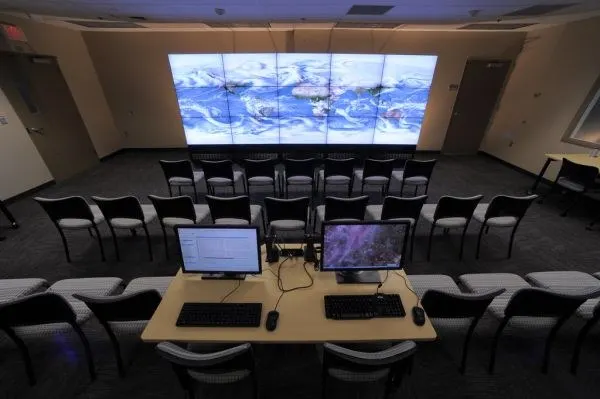
1. Super Computer
These are the most powerful computer systems available today. Super computer systems are very expensive (their cost runs into millions). A super computer is used in scientific areas such as weather forecasting, nuclear weapon development and for government agencies, wherever the need for large databases and complex calculation capabilities arises.
Characteristics of a Super Computer
- Its CPU is much more powerful than that of other computers.
- It understands both analog and digital as well as graphical signals.
- Its primary memory is larger than any other type of computer.
- It has a multi-user capacity.
- It is used to understand very complex types of data.
- It is used for the satellite program, weather forecasting, geological work and nuclear research.
PARAM, Cray-1, Cray-2. (PARAM is India's own super computer.)
2. Mainframe Computer
A mainframe computer can process large amounts of data at very high speeds (10 million instructions per second) and can support many input, output and auxiliary storage devices. Mainframe computers have multi-user facilities and remote job entry stations. Their cost is very high. A mainframe is used in airway reservation and railway reservation.
Characteristics of a Mainframe Computer
- The size and capacity of the computer is also large, but less than a super computer.
- It is specially designed for multi-user functions.
- The word length and memory are bigger; the word length is 32-bit to 64-bit.
IBM-400, DEC-600.
Types of Computer — Mini & Micro

3. Mini Computer
Minicomputer systems have the same type of capabilities as a mainframe computer, but a minicomputer has a smaller primary memory and is less powerful than the mainframe system. It is also cheaper than a mainframe.
Characteristics of a Mini Computer
- This computer is also called a digital computer.
- It occupies a large space as compared to a super computer.
- These computers are used for multi-tasking processing technology.
- Its word length is between 32-bit and 64-bit.
PDP-11, HP-2100.
4. Micro Computer
Microcomputer systems are the smallest, cheapest and most commonly used computer systems. A microcomputer is based on the microprocessor, which is a single IC that contains an ALU as well as the control capability for memory and input/output access.
Micro computers are designed to be used by one person at a time. These computers cannot be easily linked to any other large computer. They consist of different units like the input unit, processing unit, output unit and memory unit. Nowadays the microcomputer has become powerful, which is why these computers are now also used in multi-processing techniques.
Characteristics of a Micro Computer
- They are very small in size, so small that they can be placed on a table top and a user can even carry them.
- The word length of these computers is 8-bit to 64-bit.
- The execution speed is not very fast, but it is still satisfactory.
- It is cheaper, so it can be used for general-purpose work.
PC2, PC-AT, PC-XT — and today's everyday desktops and laptops.
Components & the Keyboard
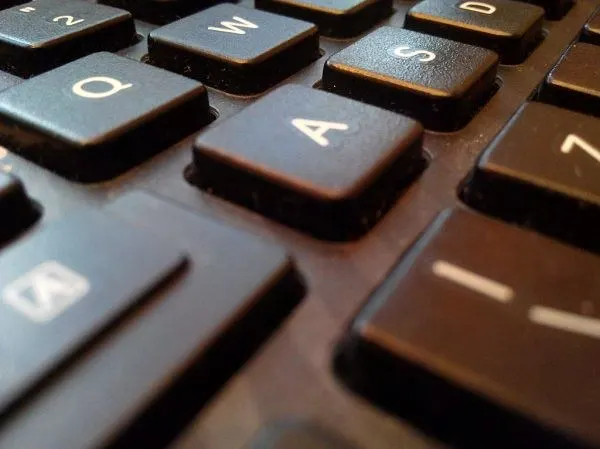
Computers are made up of the following three components that work together: (1) Input Devices, (2) Processing Devices and (3) Output Devices.
Input devices are those devices which are used to insert or input data and instructions or information into a computer. Some of the most commonly used input devices are the mouse, keyboard, digital camera, joystick and scanner.
A processing device is responsible for controlling the storage and retrieval of information. The information is processed by the computer processor (CPU), which performs data calculations, data comparisons and data copying with the information from the processing devices. The CPU then saves that information to the computer memory (RAM).
Output devices are used to display the result. The most commonly used output devices are the Monitor, Printer, Speaker, Headphones and Projector.
The Keyboard and its Keys
A keyboard is used to enter data into a computer. There are different types of keys, each with its own function:
- Typing keys — they include the letters, numbers, symbols, punctuation and the space bar.
- Control keys — the Control (Ctrl) key, the Alt key, the Windows logo key and the Escape key are the control keys. These keys are used alone or in combination with other keys to perform certain actions.
- Function keys — these are labelled F1, F2, F3, F4 … up to F12. Their functionality differs from program to program and is used to perform specific actions.
- Navigation keys — navigation means locating a position. They help you to move around in documents, data sheets, presentations or web pages and to edit text. These include the arrow keys, Home, End, Page Up, Page Down, Delete and Insert.
- Numeric keypad — designed like a conventional calculator, it is used to input numbers quickly. It sits on the right side of the keyboard.
- Toggle keys — these keys are used to turn a function on or off, or to switch between two functions. Examples of toggle keys are the Caps Lock key, Number Lock key and Scroll Lock key.
Input Devices in Detail
Mouse
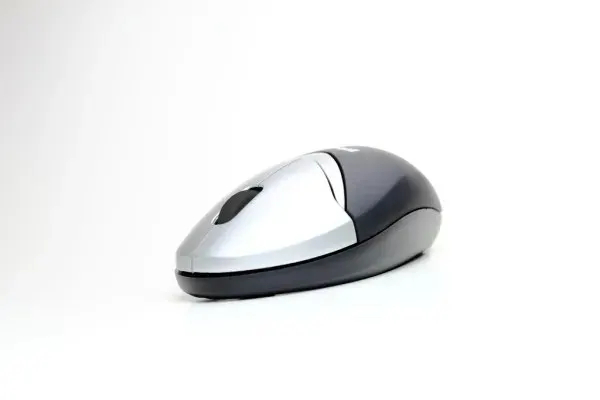
A mouse is a pointing device. It is used to point at and interact with items on the computer screen. When we move the mouse, we see a small moving arrow called the 'pointer'. The pointer can provide data or instructions to the computer for processing. A mouse has two buttons — left and right. It also includes a scroll wheel between the two buttons that helps to move between documents and web pages more easily. Common types of mouse include the mechanical, the optical and the wireless mouse.
Scanner
A scanner is used to capture images from photographic prints, posters, magazine pages and similar sources for computer editing and display. Very high-resolution scanners are used for high-resolution printing, but lower-resolution scanners are adequate for capturing images for computer display. Scanners usually come with software — such as Adobe's Photoshop product — that lets you resize and otherwise modify a captured image. A bar code reader is a special photoelectric scanner that reads the bar codes printed on products, and a pen scanner is a small device used to scan lines of printed text.
Digital Camera
A digital camera is a camera that captures photographs in digital memory. Most cameras produced today are digital, and cameras are now incorporated into mobile devices like smartphones, which can, among many other purposes, use their cameras to initiate live video-telephony and to directly edit and upload imagery to others. However, high-end, high-definition dedicated cameras are still commonly used by professionals and by those who wish to take higher-quality photographs.
Joystick
A joystick is an input device consisting of a stick that pivots on a base and reports its angle or direction to the device it is controlling. Joysticks are often used to control video games, and they usually have one or more push-buttons whose state can also be read by the computer.
Output Devices
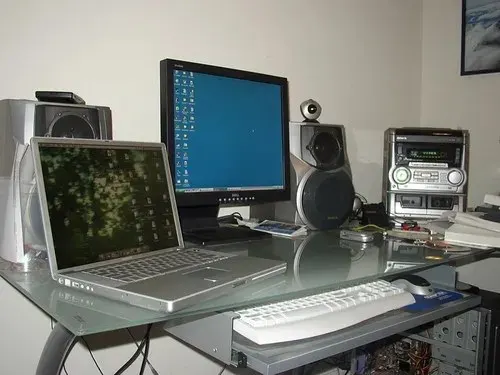
Output devices show or deliver the result that the computer has produced. The five common output devices are the monitor, the printer, the speaker, the headphones and the projector.
1. Monitor
The monitor is the most commonly used output device. A monitor is a screen used to display the output, such as words, numbers and graphics. Monitors are of two types — the Cathode Ray Tube (CRT) and the Flat Panel Display. CRTs are cheaper and have a good viewing angle, but they are bulky and consume more power. Flat Panel Displays are lighter and have no magnetic interference, but they are also costlier. Most modern flat-panel monitors use LED (Light Emitting Diode) or LCD (Liquid Crystal Display) screens.
2. Printer
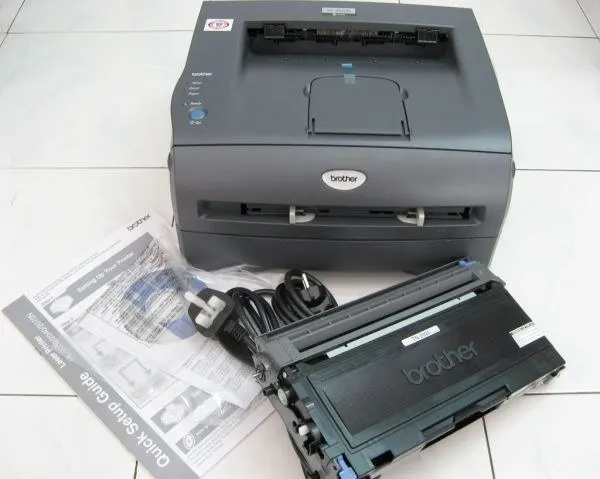
A printer takes the processed data from the computer (the soft copy) and generates a hard copy of the same. Printers are commonly used to print text data and images. A soft copy is an image or text file viewed on a computer's display, whereas a hard copy is the printed version of the same. There are two types of printers — Impact Printers and Non-impact Printers. A printer's printing quality is measured in DPI (dots per inch).
- Impact Printer — an impact printer operates by striking a metal or plastic head against an ink ribbon. Common examples of impact printers include the dot matrix, the daisy-wheel printer and the ball printer.
- Non-Impact Printer — this is a type of printer that does not hit or impact a ribbon to print. Examples of non-impact printers include the laser printer, the ink-jet printer and the thermal printer. The term "non-impact" is important mainly because it distinguishes the quiet printers from the noisy (impact) printers.
3. Speaker, 4. Headphones & 5. Projector
- Speaker — a speaker is an output device through which we can hear sound. Without a speaker you would not be able to listen to music, hear audio content, and so on; everyone in the room can hear it.
- Headphones — these are an output device that gives sound output from the computer. They are similar to speakers, except that they are worn on the ears, so that only one person can hear the output at a time.
- Projector — this is an output device with which a text or an image is projected onto a flat screen. A projector is often used in meetings or to make presentations, as it allows the display to be visible to many people at once.
Processing Devices — the CPU
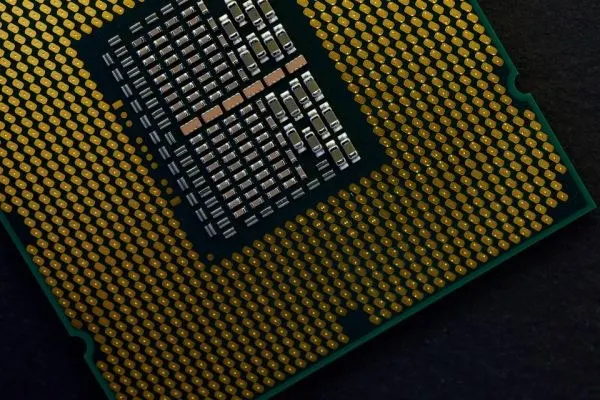
A processing device is the device which is used to process the inputted data, prepare the result accordingly and produce the output. Hence we can say that the processing device controls the whole computer system. The processing device is also known as the CPU.
CPU stands for the Control / Central Processing Unit. All the arithmetic operations, the taking of decisions and the control of all computer devices are done by the central processing unit. It consists of an arithmetic/logic section for computations and a primary storage section for holding the instructions and related data for processing. Because the CPU controls the overall processing, it is called the brain of the computer.
keyboard, mouse
processes data
monitor, printer
The processing unit is divided into three parts
The processing unit is divided into (i) the Control Unit, (ii) the Memory (Primary Memory) and (iii) the Arithmetical Logical Unit (ALU).
Control Unit
The Control Unit interprets instructions and produces the signals for the execution of an instruction. It also sends the result of a processed instruction to the output units as well as to memory. In other words, the Control Unit reads every instruction given by you through an input device (such as the keyboard), and takes the decision for questions like "How to do?" and "What to do?"; it then sends the instruction to the appropriate part for processing, and after processing it gets the result back and again sends that result to the output device (such as the monitor or printer) as well as to memory.
Arithmetic Logic Unit (ALU)
ALU stands for the Arithmetic Logic Unit / Arithmetical Logical Unit. It does all the calculations and makes decisions on the given data/instruction. Every type of arithmetical and logical task is performed by the ALU — that is, every type of addition, subtraction, multiplication and division is done by the ALU. It also takes logical decisions like yes or no, true or false, on or off. The ALU contains a small electronic part called a register.
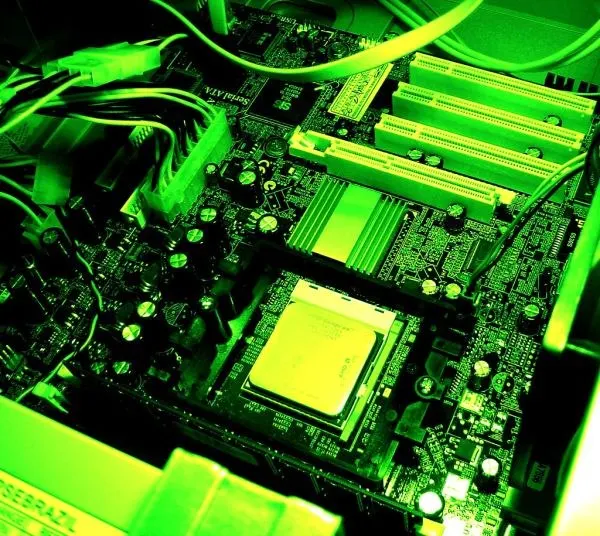
The CPU's working speed is controlled by the System Clock, and the various components on the motherboard (also called the system board) communicate with one another through bus lines.
Memory of Computer
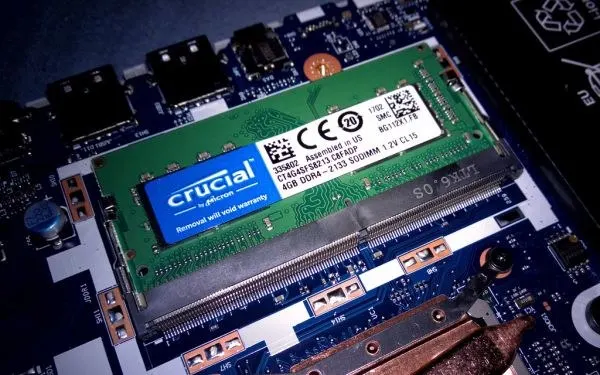
When we know something, it is stored in our memory. In the same way, the place where the computer stores data and programs is called Computer Memory. Memory is a major factor in a computer system. Data and programs are stored in memory before any operation. An input device sends data and instructions to the CPU, which are first stored in memory and then processed by the control unit.
There are two types of memory — (i) Internal memory and (ii) External memory.
Internal Memory
The internal memory resides inside the computer, where data and programs are stored at the time of processing. There are two types of internal memory: (i) Primary Memory and (ii) Secondary Memory.
Primary Memory
The data and instructions supplied by the user are first stored in primary memory, and after execution they can be stored in secondary memory for the sake of retrieving/reusing the result in the future. The primary memory is a part of the processing device, because without it the computer is not able to boot or work. Primary memory is also known as main memory. There are two types of primary memory: RAM and ROM.
- RAM (Random Access Memory) — the data and instructions stored in RAM can be read over and over again without destroying them. However, its data are destroyed if the power fails; that is, the contents of RAM are lost if the power supply is cut off. Because of this property RAM is known as volatile memory. RAM is also known as main memory, and RAM can be altered.
- ROM (Read Only Memory) — ROM's instructions are permanently built into the circuitry by the manufacturer of the program. A ROM cannot be altered; it is a permanently built-in memory. It has no effect from the electric current; that is, when the power is lost the contents of ROM are not lost. Because of this property ROM is known as non-volatile memory.
Secondary Memory
The secondary memory is basically used to store every data which you want to reuse in the future. It stores every data in the form of a 'File'. The secondary memory is a random access memory; it rotates at a very high speed to read and write data. The hard disk is an example of secondary memory.
Cache Memory
Cache memory is a small but very fast temporary memory placed between the CPU and RAM. It keeps the data that the CPU needs most often so that the computer works faster.
RAM = fast, temporary, volatile (lost on power-off) · ROM = permanent, non-volatile (kept without power) · Hard disk = large permanent secondary storage.
Storage Devices & Units of Data
Hard Disk
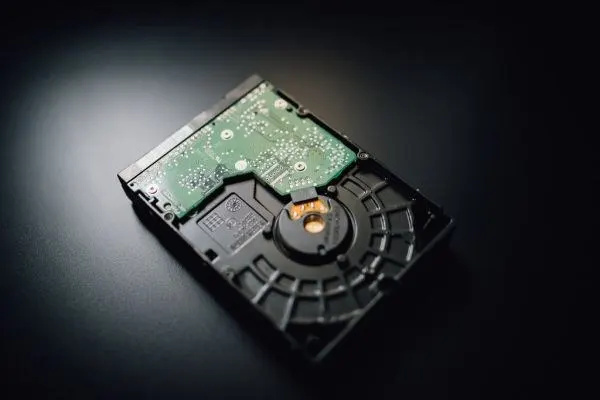
The hard disk is the most essential storage medium of a computer. All the programs and software that you need are stored on the hard disk. It is a fixed disk in the computer system — you cannot transfer the hard disk anywhere away from the computer. It is a random access device. It rotates at a high speed, varying from 1000 r/m to 6000 r/m, and its storage capacity varies from a few Kilobytes (KB) up to a Terabyte (TB). A hard disk has several platters (disks) instead of just one; if the read-write head touches the surface of a platter, a head crash may happen.
External Memory
The memory which is used externally to preserve and store data and programs is called external memory. The floppy disk and the CD-ROM are examples of external memory. It is like secondary memory, but used externally.
- Floppy Disk — a floppy disk is an external storage device used to store data externally. You can carry it easily from one place to another, which made it very popular for moving data between computers. It can store about 1.44 MB of data at a time. It is made up of ferrous oxide (iron oxide), covered with a thick, hard plastic jacket.
- CD-ROM — CD-ROM stands for Compact Disk Read Only Memory. It is a storage device whose capacity is much greater than that of a floppy disk. It is a kind of read-only memory, i.e. you cannot write on a CD-ROM. Its storage capacity is about 750 MB, and it is made of optical fibre. Nowadays a re-writable CD is also available; you can write on a writable/re-writable CD by using a special device called a CD-RW (CD Re-Writer).
- DVD — a DVD is an optical disc, similar to a CD but with a much higher capacity. It is based on optical-disk technology.
- Pen Drive (USB Flash Drive) — a small, portable data-storage device that plugs into a USB (Universal Serial Bus) port (it is not connected through a serial port).
Storage of Data in the Memory
The computer stores all information in just two digits, 0 and 1. A single binary digit — that is, a 1 or a 0 — is called a bit. A group of eight bits is called a byte.
| Unit | Equals |
|---|---|
| 1 Byte | 8 bits |
| 1 Kilobyte (KB) | 1024 Bytes |
| 1 Megabyte (MB) | 1024 KB |
| 1 Gigabyte (GB) | 1024 MB |
| 1 Terabyte (TB) | 1024 GB |
| 1 Petabyte (PB) | 1024 TB |
| 1 Exabyte (EB) | 1024 PB |
| 1 Zettabyte (ZB) | 1024 EB |
| 1 Yottabyte (YB) | 1024 ZB |
Power Devices — UPS, CVR, CVT
Three devices are used to give the computer a steady supply of electricity at a constant voltage of about 220 V and to protect it from power problems. They differ mainly in whether or not they contain a battery for backup.
UPS (Uninterruptible Power Supply)
UPS stands for Uninterrupted Power Supply. As its name says, it supplies power (a constant voltage, i.e. 220 V) to the computer system without any interruption. It supplies power both during the normal A.C. power supply and also when the power is cut off during working. It has a battery, which is used when the A.C. supply is not available. When the A.C. power supply is cut off, it connects to the battery very quickly, so that the user can work continuously without any disturbance. In this way it is helpful both for the computer system and for the user. It saves the hardware from damage due to the unconditional disturbance of the power supply, and it prevents the loss of the user's valuable data, which would otherwise be lost when the power supply is cut off during working.
CVR (Constant Voltage Regulator)
CVR stands for Constant Voltage Regulator. It provides a constant voltage (i.e. 220 V) as output. It supplies power only when the A.C. power supply is available. There is no battery in a CVR, so it does not supply power to the computer system when the A.C. power supply is cut off. It is not useful for a user if the power supply of his area is poor.
CVT (Constant Voltage Transmitter)
CVT stands for Constant Voltage Transmitter. It provides a constant voltage (i.e. 220 V) as output. It supplies power only when the A.C. power supply is available. There is no battery in a CVT, so it does not supply power to the computer system when the A.C. power supply is cut off. It too is not useful for a user if the power supply of his area is poor.
Only the UPS has a battery, so only the UPS keeps the computer running during a power cut. The CVR and CVT merely steady the voltage and stop the moment the mains power fails.
Representation of Data
The conversion of data and its storage in selected formats is called the representation of data. In computer architecture and design there are many methods of representing data. These methods are commonly called the codes. The different codes used for the representation of data are ASCII, BCD and EBCDIC.
ASCII Codes
ASCII stands for the American Standard Code for Information Interchange. This code is a binary code. It uses a combination of 8 bits to represent any digit, any letter of the alphabet and any special symbol. A combination of 8 bits is called a Byte; therefore, to represent a character in ASCII code, one character requires one byte. The data representation in ASCII codes is universal at all stages of data handling, storage and processing in the computer.
BCD (Binary Coded Decimal) Codes
In BCD codes, the digits of a decimal number are encoded in a group of bits, one decimal digit at a time. The group may have 4 bits, 6 bits, and so on. There are different BCD codes.
EBCDIC Codes
EBCDIC stands for the Extended Binary Coded Decimal Interchange Code. It is an 8-bit code that is an extension of the older 6-bit BCD code, and it was widely used on first- and second-generation computers.
It is necessary for us to understand how the binary system works, or how the computer uses machine language, in order to operate computers. All micro-computers have this information permanently programmed into their hardware.
Number Systems
There are four number systems used in the computer. These are the Binary Number System, the Decimal Number System, the Octal Number System and the Hexadecimal Number System. Each system has a base, which is the count of different digits the system uses.
Binary Number System
The number system which has a base of two is called the binary number system; that is, it uses only two symbols/digits, namely 0 and 1, for representing any data. These symbols are called bit — bit stands for binary digit. To represent a number in the binary number system, any combination of 0s and 1s can be used, e.g. (1101)2, (1100)2.
Decimal Number System
In this system, ten digits are used, namely 0, 1, 2, 3, 4, 5, 6, 7, 8 and 9. These digits represent their absolute value as well as a value according to the position they occupy in the number. The base of this number system is 10, e.g. (1304)10, (1786)10.
Octal Number System
In the octal number system, eight symbols/digits are used, namely 0, 1, 2, 3, 4, 5, 6 and 7. The base of this number system is 8, e.g. (1100)8, (2671)8, (321)8.
Hexadecimal Number System
In the hexadecimal number system, sixteen digits/symbols are used, namely 0, 1, 2, 3, 4, 5, 6, 7, 8, 9, A, B, C, D, E and F. The base of this number system is 16, e.g. (A321)16, (FF)16, (1100)16.
| System | Base | Digits used |
|---|---|---|
| Binary | 2 | 0, 1 |
| Decimal | 10 | 0 – 9 |
| Octal | 8 | 0 – 7 |
| Hexadecimal | 16 | 0 – 9 and A – F |
The numbers (1100)2, (1100)8, (1100)10 and (1100)16 are not the same, because their bases are different. We can convert any number of any number system into any other number system.
Hardware & Software
All the physical components of a computer that can be touched or felt are called Hardware. The electronic circuits and mechanical components such as the Hard Disk, Printer, CPU, Keyboard and Mouse are hardware. Hardware devices are very important, but they are useless without the instructions that control them.
The instructions that are used to control hardware and to accomplish tasks are called Software. Software is a general term used for computer programs. These programs are planned, step-by-step sets of instructions that direct the computer what to do and how to do it. There are three types of software: Application Software, System Software and Utility Software.
Application Software
An application is a job or a task that a user wants to accomplish through a computer. Application software is a program that helps the user to perform a specific job. It enables a user to write a letter or create a drawing. Microsoft Word and Microsoft Paint are examples of application software.
System Software
The programs that are directly related to the computer hardware are called system software. For example, to run a computer you need an operating system, which is a system software.
Utility Software
Utility software can be classified as (1) Disk Defragmenter and (2) Virus Scanner & Remover.
- Disk Defragmenter — fragmentation is the uneven distribution of data on a disk. As files are updated, they become less adjacent on the disk. When data is added, the operating system stores it in the available free space. As a result, parts of the files wind up in separate areas of the disk, causing additional arm movement when the file is read sequentially. The disk defragmenter program is used to reorder the files in a continuous manner so they can be read faster.
- Virus Scanner & Remover — virus scanners are products designed to help identify viruses within files, boot sectors, master boot sectors, memory and other hiding places, name them and eventually remove them. The capability to detect and identify a virus is probably the most important desire of a scanner.
Operating System
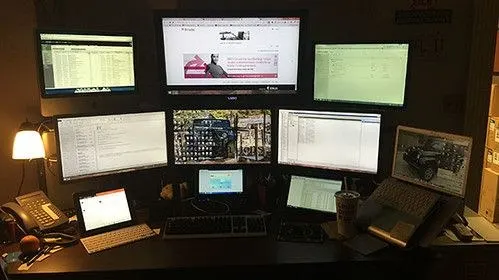
An Operating System is a program that helps us to interact with the other computer programs. The computer is useless without an operating system. There are various types of operating systems. Computers use a different language made up of digits, and the operating system acts as an interpreter — it helps us talk to the computer. In simple language, we can say that the operating system is an interface between the user and the computer. The operating system also enables us to use the system resources effectively and to access other programs. All other programs need the operating system to start them, but the operating system starts by itself. This is why, when we switch on a computer, we see the operating system's screen; the operating system starts the computer automatically when the power supply is turned on.
Functions of an Operating System
- It controls and coordinates the operation of the computer.
- It eases the interaction between you and the computer.
- It controls the input and output devices.
- It controls the execution of computer programs.
- It manages the use of the main memory of the computer.
- It helps you to manage and manipulate files.
Classification of Operating System
The operating system (OS) is system software which is necessary to boot any computer system so that it becomes working. The operating system creates an interface between the hardware and the software. An operating system can be user-friendly with many icons and images, or it can be just text or character based. The operating system can be classified into two types: the Character User Interface (CUI) and the Graphical User Interface (GUI).
- Character User Interface (CUI) — it does not have any icons or images; it has only text and characters. We perform any task on a CUI by giving commands in text such as re-name, CLS, CD, MD and DIR (directory). An example of a CUI is the Disk Operating System (DOS).
- Graphical User Interface (GUI) — it has a background picture as well as many icons. Examples of GUI operating systems are Unix, Linux, Windows, Android, iOS and Macintosh OS. Android and Windows are used in mobile phones, and Windows and Linux are the most widely used operating systems.
Types of OS & Working with Windows
Types of Operating System
There are two types of operating system: the Single User Operating System and the Multi User Operating System.
- Single User Operating System — every computer working individually needs a single user operating system. It does not provide the facility of communicating with a different computer. Its security measures are also poor, but it is cheaper and consumes less memory space.
- Multi User Operating System — a multiuser operating system is an operating system program which provides the facility of communicating with a different computer. It is used to connect two or more computers for the sake of sharing data, and it helps the user to communicate with a different computer system very easily and quickly. Its security measures are also good, but it is costly and consumes a large amount of memory space. (For example, Windows 7 is called a multi-user operating system.)
The Desktop, Icons & Start Menu
The desktop is the main screen you see after the computer starts. The small pictures on it are icons, and these desktop icons can be shown or hidden. The Start Menu opens from the Start button or the Windows key; its Run option lets you start a program by typing its name.
Taskbar & Window Buttons
The Taskbar is the strip that holds the Start button and all the open programs. The Start button is generally located on the taskbar. The taskbar shows which window is active (when several windows are open, we identify the active window with the help of the taskbar) and it can be moved to any side of the screen. Every window has buttons to Minimize, Maximize, Restore (the Restore button appears in place of the Maximize button when the window is already maximised) and Close.
Files, Folders, Clipboard & Dialog Controls
- A file is a collection of related data; its type is shown by its extension — for example, a .txt file opens in Notepad.
- A folder holds files and can contain a sub-folder, shown by a small triangle on its left in Windows Explorer. Files and folders can be zipped (compressed) to save space.
- When you cut or copy an item, it is held on the Clipboard until you copy another item or paste it; Copy–Paste is used to copy files and folders from one location to another.
- A Check box lets you select multiple options of a command, while an Option button (also called a radio button) lets you choose only one.
- Multitasking means running more than one application program at the same time. The Help option gives suggestions, options and search, and Offline means your computer is not connected to the Internet.
Programs & Languages
Program
The step-by-step instruction in any computer language to perform a desired task is called a program. It may vary from a few lines to several pages. For example, the instructions written in COBOL, BASIC, C and C++ are called a program.
Language
A language is a mode of communication, whether it is used to communicate from person to person or with anything else. In computer science, a language is a mode of communicating with the computer system. Earlier, all the programs/instructions were coded in machine-level language, which consists of binary digits (i.e. the sequence of 0s and 1s). But it is difficult to write code in machine-level language, so engineers created the translator program, which helps them to write the code in assembly language or high-level language. These languages are used to write any type of program. There are three types/generations of languages used for computer programming, and the fourth generation (4GL) language is in progress.
Machine Level Language (First Generation Language)
It is a language of the computer that the computer directly understands. Machine-level language is based on the binary number system, i.e. everything is specified in terms of 0s and 1s. Coding in machine language is specific for each computer system and needs very careful coding. Machine language also functions as the object language for higher-level language programs.
Assembly Level Language (Second Generation Language)
Assembly languages were developed to obviate (remove) many of the disadvantages of machine-language programming. In this language the programmer uses a mnemonic code to specify machine operations, so coding in 0s and 1s is no longer required. Programming in assembly language is somewhat easier than in machine language. It needs a translator to convert the assembly language program into a machine-understandable program (i.e. a machine-level language program).
High Level Language (Third Generation Language)
High-level languages are procedure-oriented languages which are machine-independent and make the task of the application programmer simpler. A high-level language places the programming emphasis on describing the computational and logical procedures required to solve the problem. Commonly used procedure-oriented languages include COBOL, BASIC, PL/1, FORTRAN, Pascal, C and C++.
4GL (Fourth Generation Language)
4GL stands for Fourth Generation Language. It is not a procedure-oriented language. It is machine-independent and a very user-friendly language. SQL is an example of the most commonly used 4GL.
Translators
A translator is a program which converts/translates the source code into its corresponding machine-level language or an equivalent language, in order to make any program machine-understandable. Assembler, compiler, linker and loader are some examples of translators. The basic flow is: Source Code → Translator → Object Code.
human-readable
compiler / assembler
machine-readable
Source Code
The program written in any language other than machine-level language is called the source code/program; i.e. the program written in assembly language or high-level language is the source code for a translator program such as a compiler, interpreter or assembler. The source code is easily understandable by any programmer but is not understandable by the computer system. It includes alphabetic characters, numeric characters, punctuation marks, mnemonic code and special characters.
Object Code
The program written in machine-level language, or equivalent to machine-level language, is called the object code. That is, when source code is translated by any translator program such as a compiler or interpreter, it creates a program which is easily understandable by the computer system — this is the object code/program. The translator program converts/decodes all the alphabetic characters, numeric characters, mnemonic code and special characters into machine-level language, i.e. into a sequence of 0s and 1s only.
Assembler, Compiler & Interpreter
- Assembler — a translator program which converts the assembly language program into its corresponding machine-level language program. An assembler which runs on the same computer for which it produces object code is called a self assembler.
- Compiler — a translator program which converts the high-level language program (source code) into machine-level language (object code). First it reads the source code, and then it converts the whole program into machine language at one time.
- Interpreter — a translator program which also converts the high-level language program (source code) into machine-level language (object code), but it does so line-by-line: it reads a sentence/line, translates it, and repeats this process until the last sentence.
Simulator & Emulator
- Simulator — a device, data-processing system or computer program that represents certain features of the behaviour of a physical or abstract system. Custom-built programs enable researchers to explore millions of potential solutions to the same problem in order to find an ideal one or eliminate them all.
- Emulator — hardware and software designed to cause one device (such as a computer) to behave as if it were another. Emulators are used in computer development as a means of enabling existing hardware and software to simulate the computer that is under development, or for which software is being developed.
Booting & Data Security
Types of Booting
"Booting" is the process of starting up the computer so that the operating system loads and the machine becomes ready to use. There are two types:
- Cold Booting — when the computer is "OFF" and we make it "ON", this booting is called cold booting. In this process the computer displays the type of processor, the memory of the computer, and so on.
- Warm Booting — when the computer is "ON" but, because of some problem, the computer is stopped, we make it switch OFF and then ON; this type of booting is called warm booting. In this case the memory and other information are not tested.
Principles of Data Security & Preventive Maintenance
In the absence of proper internal control, an unauthorized person can steal data or a program and sell them. Such a person can add, delete or change transaction data for the purpose of fraud or misappropriation. Hence, measures must be taken to protect the system against the theft of assets.
Data security involves two things:
- (a) The protection of data against accidental or malicious disclosure.
- (b) The physical protection of hardware and software against damage or destruction.
As computer systems have increased in number, direct interaction between these systems and their data has become routine for even casual users. Such openness has made it harder to maintain security, which is why access control, regular backups and antivirus software are essential parts of preventive maintenance.
Computer Virus & its Protection
A computer virus is a malicious program that self-replicates by copying itself to another program. In other words, the computer virus spreads by itself into other executable code or documents. The purpose of creating a computer virus is to infect vulnerable systems, gain admin control and steal the user's sensitive data. Hackers design computer viruses with malicious intent and prey on online users by tricking them.
One of the ideal methods by which viruses spread is through emails — by opening the attachment in an email, visiting an infected website, clicking on an executable file, or viewing an infected advertisement, any of which can cause the virus to spread to our system. Besides that, infections also spread while connecting already-infected removable storage devices, such as USB drives.
It is quite easy and simple for viruses to sneak into a computer by dodging the defence systems. A successful breach can cause serious issues for the user, such as infecting other resources or system software, modifying or deleting key functions or applications, and copying, deleting or encrypting data.
How does a computer virus operate?
A computer virus operates in two ways. The first kind, as soon as it lands on a new computer, begins to replicate. The second type plays dead until a trigger kick-starts the malicious code; in other words, the infected program needs to be run in order to be executed. Therefore, it is highly significant to stay shielded by installing a robust antivirus program.
The sophisticated computer virus comes with evasion capabilities that help in bypassing antivirus software and other advanced levels of defence. Its primary purpose can involve stealing passwords or data, logging keystrokes, corrupting files, and even taking control of the machine. Subsequently, the polymorphic malware developed in recent times enables viruses to change their code as they spread dynamically, which has made virus detection and identification very challenging.
A brief history of the computer virus
Robert Thomas, an engineer at BBN Technologies, developed the first known computer virus in the year 1971. The first virus was christened the "Creeper" virus, and this experimental program, carried out by Thomas, infected mainframes on ARPANET. The teletype message displayed on the screens read, "I'm the creeper: Catch me if you can."
But the original wild computer virus — probably the first one to be tracked down in the history of computer viruses — was "Elk Cloner." The Elk Cloner infected Apple II operating systems through floppy disks, and the message it displayed was a humorous one. The virus was developed by Richard Skrenta, a teenager, in the year 1982. Even though these computer viruses were designed as a prank, the episode also showed how a malicious program could be installed in a computer's memory and could stop users from removing the program.
It was Fred Cohen who coined the term "computer virus", a year later in 1983. The term came into being when he attempted to write an academic paper titled "Computer Viruses – Theory and Experiments," detailing the malicious programs in his work.
Types of Computer Viruses (1)
Computer viruses come in different forms to infect the system in different ways. Following are some of the most common types of computer virus, explained:
- Boot Sector Virus — this type of virus infects the master boot record. It is a challenging and complex task to remove this virus, and it often requires the system to be formatted. Mostly it spreads through removable media.
- Direct Action Virus — this is also called a non-resident virus. It gets installed or stays hidden in the computer memory and stays attached to the specific type of files that it infects. It does not affect the user experience and the system's performance.
- Resident Virus — unlike direct-action viruses, resident viruses get installed on the computer. It is difficult to identify such a virus, and it is even difficult to remove a resident virus.
- Multipartite Virus — this type of virus spreads through multiple ways. It infects both the boot sector and the executable files at the same time.
- Polymorphic Virus — these types of viruses are difficult to identify with a traditional anti-virus program. This is because the polymorphic virus alters its signature pattern whenever it replicates.
- Overwrite Virus — this type of virus deletes all the files that it infects. The only possible mechanism to remove it is to delete the infected files, and the end-user has to lose all the contents in them. Identifying the overwrite virus is difficult, as it spreads through emails.
- Space-filler Virus — this is also called a "Cavity Virus." It is so called because it fills up the empty spaces between the code and hence does not cause any damage to the file.
- File Infectors — a few file-infector viruses come attached with program files, such as .com or .exe files. Some file-infector viruses infect any program for which execution is requested, including .sys, .ovl, .prg and .mnu files; consequently, when that particular program is loaded, the virus is also loaded. Besides these, other file-infector viruses come as a completely included program or script sent in email attachments.
Types of Computer Viruses (2)
- Macro Viruses — as the name suggests, macro viruses particularly target the macro language commands in applications like Microsoft Word (and the same applies to other programs too). In MS Word, the macros are keystrokes that are embedded in documents or are saved sequences for commands; macro viruses are designed to add their malicious code to the genuine macro sequences in a Word file. However, as the years went by, Microsoft Word saw the disabling of macros by default in more recent versions. Thus, the cyber-criminals started to use social engineering schemes to target users — they trick the user into enabling macros to launch the virus. Since macro viruses have been making a comeback in recent years, Microsoft retaliated by adding a new feature in a recent version of Office that enables security managers to selectively enable macro use — it can be enabled for trusted workflows and blocked if required across the organisation.
- Overwrite Viruses — these are predominantly designed to destroy a file or application's data. After attacking the computer, the virus starts overwriting files with its own code. These viruses are capable of targeting specific files or applications, or of systematically overwriting all the files on an infected device. The overwrite virus is also capable of installing new code in files or applications which programs them to spread the virus to additional files, applications and systems.
- Polymorphic Viruses — more and more cyber-criminals depend on the polymorphic virus. It is a malware type which has the ability to change or mutate its underlying code without changing its basic functions or features. This helps the virus to evade detection from many anti-malware and threat-detection products. Since virus-removal programs depend on identifying the signatures of malware, these viruses are carefully designed to escape detection; when a security software detects a polymorphic virus, the virus modifies itself, so it is no longer detectable using the previous signature.
- Resident Viruses — the resident virus implants itself in the memory of a computer. The original virus program is not required to infect new files or applications; even when the original virus is deleted, the version stored in memory can be activated when the computer's OS loads certain applications or functions. Resident viruses are troublesome because they can run unnoticed by antivirus and anti-malware software by hiding in the system's RAM.
- Rootkit Viruses — the rootkit virus is a malware type which secretly installs an illegal rootkit on an infected system. This opens the door for attackers and gives them full control of the system; the attacker is able to fundamentally modify or disable functions and programs. Like other sophisticated viruses, the rootkit virus is created to bypass antivirus software, and the latest versions of major antivirus and anti-malware programs include rootkit scanning.
- System or Boot-record Infectors — these infect the executable code found in specific system areas on a disk. As the name implies, they attach to USB thumb drives and the DOS boot sector on diskettes, or the Master Boot Record on hard disks. Boot viruses are no more common these days, as the latest devices rely less on physical storage media.
Boot Virus and File Virus are both types of viruses — this is a frequently asked true/false point.
Protection of Computer from Viruses
The following practical measures help protect a computer from virus infection:
- Use a professional email service (such as Runbox). Subscription services provide higher levels of security and support.
- Do not open an email attachment unless you were expecting it and you know whom it is from.
- Do not open any unsolicited executable files, documents, spreadsheets, etc.
- Avoid downloading executables or documents from the internet, as these are often used to spread viruses.
- Never open files with a double file extension, e.g.
filename.txt.vbs. This is a typical sign of a virus program. - Do not send or forward any files that you haven't virus-checked first.
- Virus-makers and spammers often co-operate in devious schemes to send as much spam as possible. They create viruses that infect vulnerable computers around the world and turn them into spam-generating "robots." The infected computers then send massive amounts of spam, unbeknownst to the computer owner. Such virus-generated email is often forged to appear to be sent from legitimate addresses collected from address books on infected computers.
- The viruses also use such data, combined with lists of common (user) names, to send spam to huge numbers of recipients. Many of those messages are returned as undeliverable and arrive in innocent, unknowing email users' inboxes. If this happens to you, use the trainable spam filter to catch those messages.
For the protection of a computer from viruses, an anti-virus program should always be installed, kept updated, and used to scan every removable drive and every downloaded file.
How to Get Rid of a Computer Virus
Never neglect to take action on a computer virus residing in your system. There are chances that you might end up losing important files, programs and folders, and in some cases the virus damages the system hardware too. Thereby it becomes mandatory to have an effective anti-virus software installed on your computer to steer clear of all such threats.
Signs of a Virus Infection
It is vital for any computer user to be aware of these warning signs:
- Slower system performance.
- Pop-ups bombarding the screen.
- Programs running on their own.
- Files multiplying/duplicating on their own.
- New files or programs appearing in the computer.
- Files, folders or programs getting deleted or corrupted.
- The sound of a hard drive.
If you come across any of the above-mentioned signs, then there are chances that your computer is infected by a virus or malware. Without delay, immediately stop all commands and download an antivirus software. The removal procedure then follows these steps:
- Safe Mode — boot the system and press F8 for the Advanced Boot Options menu. Select Safe Mode with Networking and press Enter (you might need to keep pressing repeatedly to reach the screen). Working in Safe Mode helps handle the nefarious files, as they are not actually running or active. Since the internet spreads the infection, remove the connection.
- Delete Temporary Files — to free disk space, delete the temporary files before you start to run the virus scan; this approach speeds up the scanning process. The Disk Cleanup tool helps in deleting the temporary files. The path is: Start menu → All Programs → Accessories → System Tools → Disk Cleanup.
- Download a Virus/Malware Scanner — a virus scanner does not clean up all the bad stuff: it helps in eliminating standard infections but is not sufficient to remove the latest harmful infections. The scanner helps to narrow down the issue, so download it now; for better protection, go for a real-time anti-virus program, since it automatically keeps checking in the background for viruses.
- Run a Virus/Malware Scan — download the scanner using the internet, and once finished, disconnect from the internet for security and safety reasons. After the download, complete the installation, then run your on-demand scanner first and thereafter run your real-time scanner.
- Reinstall the Software or Damaged Files — once the virus removal is complete, reinstall the files and programs that were damaged by the virus or malware, making use of your backups for the re-installation.
Key Abbreviations & Shortcuts
A quick revision sheet of the common full forms and keyboard shortcuts used in the exam.
Important Full Forms
| Short | Full form | Short | Full form |
|---|---|---|---|
| CPU | Central Processing Unit | ALU | Arithmetic Logic Unit |
| CU | Control Unit | RAM | Random Access Memory |
| ROM | Read Only Memory | USB | Universal Serial Bus |
| GUI | Graphical User Interface | CUI | Character User Interface |
| OS | Operating System | DOS | Disk Operating System |
| PDA | Personal Digital Assistant | GIF | Graphic Interchange Format |
| LED | Light Emitting Diode | LCD | Liquid Crystal Display |
| DPI | Dots Per Inch | IPO | Input – Process – Output |
| ASCII | American Std. Code for Info. Interchange | IC | Integrated Circuit |
| VLSI | Very Large Scale Integration | ULSI | Ultra Large Scale Integration |
| EBCDIC | Extended BCD Interchange Code | BCD | Binary Coded Decimal |
| UPS | Uninterruptible Power Supply | SQL | Structured Query Language (4GL) |
Common Keyboard Shortcuts
| Keys | Action | Keys | Action |
|---|---|---|---|
| Ctrl + C | Copy | Ctrl + X | Cut |
| Ctrl + V | Paste | Ctrl + Z | Undo |
| Ctrl + Y | Redo | Ctrl + O | Open a file |
| Ctrl + S | Save | Ctrl + Home | Go to beginning of file |
| Ctrl + End | Go to end of file | Enter | Apply a command |
| Windows key | Open the Start Menu | Alt | Combination key |
Exam Question Bank
These objective questions are frequently asked in GCC-TBC and computer-fundamentals exams. Revise with the answer shown beside each question.
| # | Question | Answer |
|---|---|---|
| 1 | Scanner is _____ type of device. | Input |
| 2 | Speaker is _____ device. | Output |
| 3 | Pen Drive is connected to the computer by Serial port. | False |
| 4 | ROM and RAM are the same memories. | False |
| 5 | F1 to F12 are _____ keys. | Function keys |
| 6 | We can run a program with the _____ option of the Start Menu. | Run |
| 7 | PDA stands for _____ | Personal Digital Assistant |
| 8 | Files or folders can be zipped. | True |
| 9 | Using _____ the various components on the motherboard communicate with each other. | Bus lines |
| 10 | The period of the first-generation computer was between _____ and 1956. | 1940 |
| 11 | USB means Universal Serial Bus. | True |
| 12 | F1 to F12 are _____ keys. | Function keys |
| 13 | Which is the correct sequence of computer steps? | Input → Process → Output |
| 14 | The term _____ is generally used in the case of memory. | RAM |
| 15 | For protection of a computer from viruses, a _____ program should be used. | Anti-virus |
| 16 | IBM is a _____ manufacturing company. | Microprocessor |
| 17 | On pressing Ctrl + Home, _____ happens. | Go to beginning of the file |
| 18 | DVD is based on Optical Disk technology. | True |
| 19 | GIF means _____ | Graphic Interchange Format |
| 20 | 1 Gigabyte = _____ | 1024 Megabytes |
| 21 | To get back the effect of an undo command, the redo command is used. | True |
| 22 | The Start button is generally located on the _____ | Taskbar |
| 23 | “PARAM” is a _____ computer. | Super |
| 24 | TB means Terabytes. | True |
| 25 | Data received from an input device is first stored in the _____ unit of the CPU. | Memory |
Exam Question Bank (cont.)
| # | Question | Answer |
|---|---|---|
| 26 | Monitor is a _____ device. | Output |
| 27 | _____ is temporary memory. | RAM |
| 28 | CPU stands for Central Processing Unit. | True |
| 29 | TB means _____ | Terabyte |
| 30 | _____ is a small device used to scan text matter. | Pen scanner |
| 31 | _____ controls the operation speed of the computer. | System clock |
| 32 | CU means Control Unit. | True |
| 33 | Windows 7 is called a _____ user operating system. | Multi |
| 34 | Printer is a _____ device. | Output |
| 35 | Information is permanently stored in _____ | ROM |
| 36 | Mouse is a _____ device. | Pointing |
| 37 | .txt is a _____ file extension. | Notepad |
| 38 | We can select multiple options of a command if a _____ is beside that command. | Check box |
| 39 | _____ is a program that spoils data files and programs. | Virus |
| 40 | _____ digits exist in the binary number system. | 2 |
| 41 | _____ operations are called mathematical processes. | Arithmetic |
| 42 | JAVA is a _____ | Programming language |
| 43 | Cache memory is known as _____ memory in a computer. | Temporary |
| 44 | When several windows are open, we can identify the active window with the help of the _____ | Taskbar |
| 45 | _____ is called a photoelectric scanner. | Bar code reader |
| 46 | Data remains stored in _____ even after the power supply is cut. | ROM |
| 47 | Unix is a/an _____ | Operating System |
| 48 | The term _____ means your computer is not connected to the Internet. | Offline |
| 49 | IC was used in the _____ generation. | Third |
| 50 | Mouse is an output device? | False |
Exam Question Bank (cont.)
| # | Question | Answer |
|---|---|---|
| 51 | Which keyboard key opens the Start Menu? | Windows key |
| 52 | Icons on the desktop can be _____ | Hidden |
| 53 | _____ is also called a radio button. | Option button |
| 54 | A printer's printing quality is measured in _____ | DPI |
| 55 | When an electrical signal is OFF, it is denoted by _____ in the binary number system. | 0 |
| 56 | When we copy or cut an item, it is stored in the _____ until we copy another item. | Clipboard |
| 57 | A file means _____ | A collection of related data |
| 58 | 1024 KB means 1 _____ | Megabyte |
| 59 | P-4 is a type of _____ | Microprocessor |
| 60 | The insertion pointer can be moved to the previous line using the _____ key. | Up arrow key |
| 61 | Arrow keys are also called _____ keys. | Navigation |
| 62 | Alphanumeric keys contain _____ | Letters, numbers & special characters |
| 63 | Running more than one application program at a time is called _____ | Multitasking |
| 64 | A computer keyboard has a set of _____ keys on the right side. | Numbers |
| 65 | The ALU contains a small electronic part called a _____ | Register |
| 66 | Monitor and _____ are common output devices. | Printer |
| 67 | The taskbar can be moved to _____ | Any side of the screen |
| 68 | In a computer, the IPO cycle means _____ | Input – Process – Output |
| 69 | A collection of 1024 MB of data means 1 _____ of data. | Gigabyte |
| 70 | LED means _____ | Light Emitting Diode |
| 71 | Pen drive is a _____ device. | Data storage |
| 72 | DOS means _____ | Disk Operating System |
| 73 | When a window is maximised, the _____ button appears in place of the maximise button. | Restore |
| 74 | Memory management is one of the functions of the O.S. | True |
| 75 | Ctrl + O means _____ | Open a file |
Exam Question Bank (cont.)
| # | Question | Answer |
|---|---|---|
| 76 | Keyboard is a _____ device. | Input |
| 77 | 0 and 1 are called a _____ | Bit |
| 78 | _____ is a secondary storage device. | All of the above |
| 79 | _____ was used in the third generation of computers. | IC |
| 80 | _____ are types of mouse. | All of the above |
| 81 | Hard disk is an example of _____ memory. | Secondary / External |
| 82 | ROM means Read Only Memory. | True |
| 83 | Boot Virus and File Virus are types of viruses. | True |
| 84 | GUI means _____ | Graphical User Interface |
| 85 | Linux is a/an _____ | Operating System |
| 86 | To copy files and folders from one location to another, the _____ option is used. | Copy–Paste |
| 87 | The system board of a computer is also called the _____ | Motherboard |
| 88 | _____ are input devices. | All of the above |
| 89 | Speed is one of the characteristics of a computer. | True |
| 90 | A register is a small non-electronic part. | False |
| 91 | The “Alt” key is a _____ key. | Combination |
| 92 | Joystick is a _____ device. | Input |
| 93 | What is the use of the ENTER key? | Apply a command |
| 94 | CPU stands for _____ | Central Processing Unit |
| 95 | _____ is the option that helps give suggestions, options, search, etc. | Help |
| 96 | A hard disk has several platters (disks) instead of one. | True |
| 97 | Printer is an output device. | True |
| 98 | When the read-write head touches the magnetic disk surface, a _____ may happen. | Head crash |
| 99 | If a folder in Windows Explorer has a triangle sign on its left, it means it has a _____ in it. | Sub-folder |
| 100 | A group of _____ bits is called 1 byte. | 8 |
Chapter Mind Map
One-glance revision of the whole chapter — follow each branch to recall the key points.
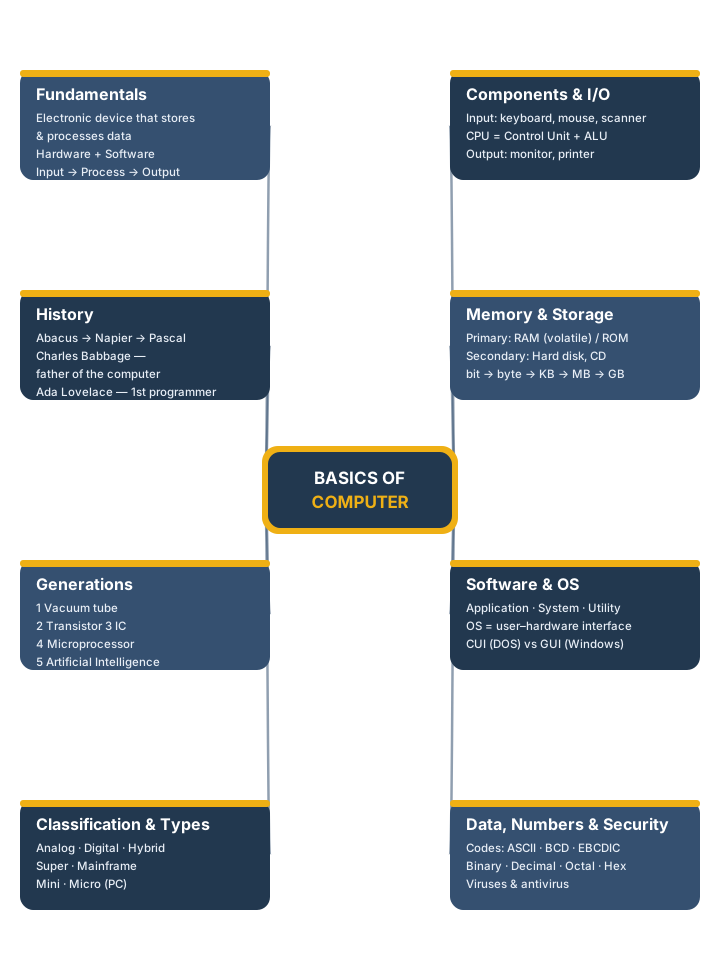
Image Credits & Licences
All photographs are royalty-free, sourced via Openverse from public CC / public-domain libraries (Wikimedia Commons, Flickr, StockSnap). CC0 / PDM images need no attribution; CC-BY / CC-BY-SA images are credited below.
| Used for | Source | Licence |
|---|---|---|
| Opening photo | Flickr — Jon Rohan | CC BY 2.0 |
| History | Flickr — ajmexico | CC BY 2.0 |
| Generations | Flickr — derekGavey | CC BY 2.0 |
| Types (super) | Flickr — NASA Goddard Space Flight Center | CC BY 2.0 |
| Types (micro) | Flickr | CC0 |
| Motherboard | Flickr | CC0 |
| Keyboard | Flickr — abegum | CC BY 2.0 |
| Mouse | Flickr — Trostle | CC BY 2.0 |
| Monitor | Flickr — brosner | CC BY 2.0 |
| Printer | Flickr — liewcf | CC BY-SA 2.0 |
| CPU | Stocksnap | CC0 |
| Memory (RAM) | Flickr — Diego3336 | CC BY 2.0 |
| Storage | Flickr — Ivan Radic | CC BY 2.0 |
| Number systems | Flickr — Yu. Samoilov | CC BY 2.0 |
| Operating system | Flickr — willybepop | CC BY 2.0 |
| Security | Flickr — shock264 | CC BY 2.0 |
Logo, layout, diagrams and the mind map are original GradeTyping artwork. The brand recreation of the logo is vector (SVG).